
Software
Microsoft Teams isn’t just for businesses—it’s transforming classrooms worldwide. Discover how schools leverage this powerful tool to enhance collaboration, streamline communication, and improve student engagement in ways traditional methods can’t match.
Seamless Classroom Communication Platform

Tired of chasing students for missed emails or playing phone tag with parents? Microsoft Teams consolidates all classroom communication into one secure, organized hub, where announcements, messages, and updates flow in real time—no more scattered inboxes or lost voicemails.
Teachers post homework reminders, event updates, and emergency alerts in dedicated channels, while students reply directly through the app. The @mention feature ensures no one misses critical messages, and customizable notifications let parents opt into only the updates that matter—like test schedules or volunteer requests. With end-to-end encryption, sensitive info stays protected, and the search function makes finding past conversations effortless.
This is a game-changer for hybrid and remote schools, where clear communication keeps everyone—teachers, students, and parents—on the same page. Say goodbye to the chaos of disjointed tools. ⚡
Virtual Classroom Integration with Lessons
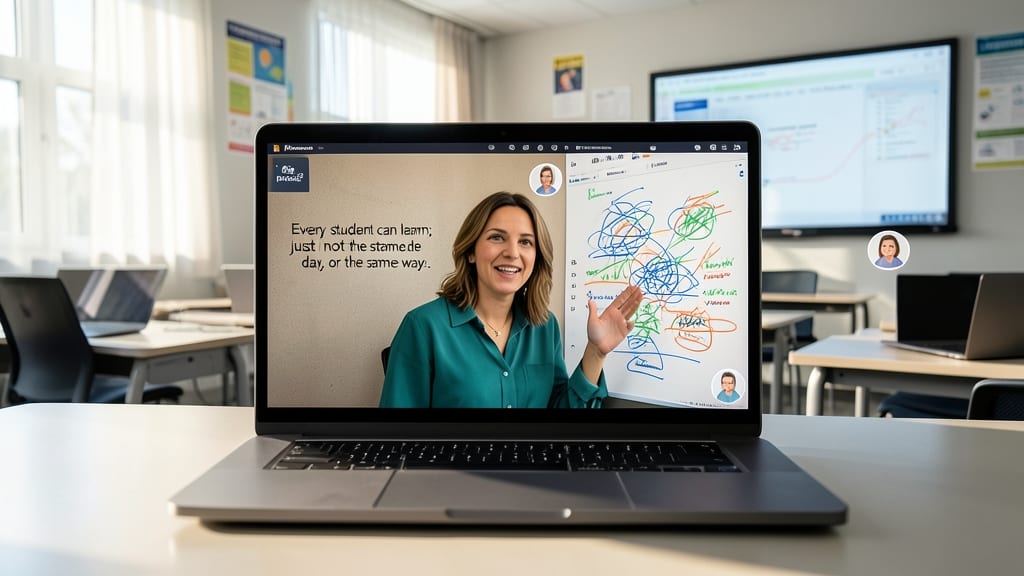
Struggling to keep students engaged during hybrid or fully remote lessons? Microsoft Teams’ Virtual Classroom Integration with Lessons turns passive video calls into dynamic, interactive learning sessions—no extra apps required. The platform combines high-definition video conferencing, real-time screen sharing, and a digital whiteboard where teachers can annotate, draw, or highlight content live, just like in a physical classroom.
With lesson-specific tools, educators can launch pre-loaded presentations, share interactive quizzes via Microsoft Forms, and even use the whiteboard feature to solve math problems or brainstorm ideas together. The breakout rooms (covered later) integrate seamlessly here, letting teachers split students into small groups for discussions or peer teaching—all while the main classroom session stays active. For STEM classes, the screen-sharing feature lets students present lab results or coding projects in real time, while the reaction buttons (thumbs up/down) keep engagement high during Q&A sessions.
This is a game-changer for hybrid schools balancing in-person and virtual students, remote teachers needing to recreate classroom energy, and subjects like art or music where visual collaboration is key. No more boring lectures—just immersive, tech-powered learning that keeps students actively participating. 💻
Collaborative Class Projects in One Space
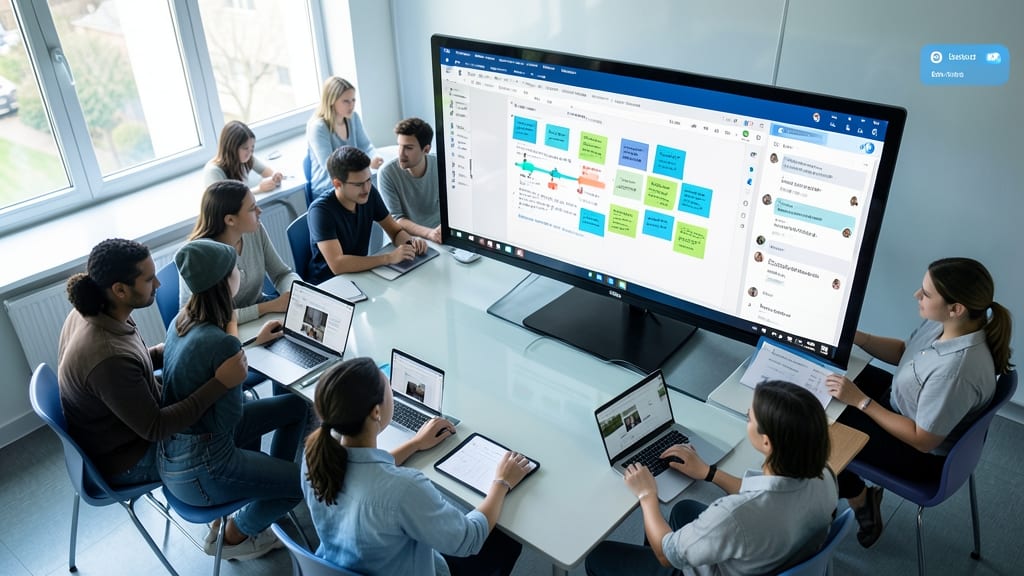
Imagine a group project where every student can contribute to the same document, brainstorm ideas in real time, and track changes without the chaos of emailing drafts back and forth. Microsoft Teams turns this vision into reality with its shared workspace tools, designed specifically for educational collaboration.
With simultaneous editing in Word, Excel, and PowerPoint, students can work on presentations, research papers, or spreadsheets together—just like they would in a physical classroom. The version history feature lets teachers and students revisit earlier drafts, while @mentions keep everyone focused on their tasks. No more lost files or "finalv3final.docx" confusion!
This is a game-changer for group assignments, science fair projects, or debate prep teams. Whether students are in the same room or spread across continents, Teams keeps everyone on the same page—literally. ✨
Built-In Assignment and Grade Management
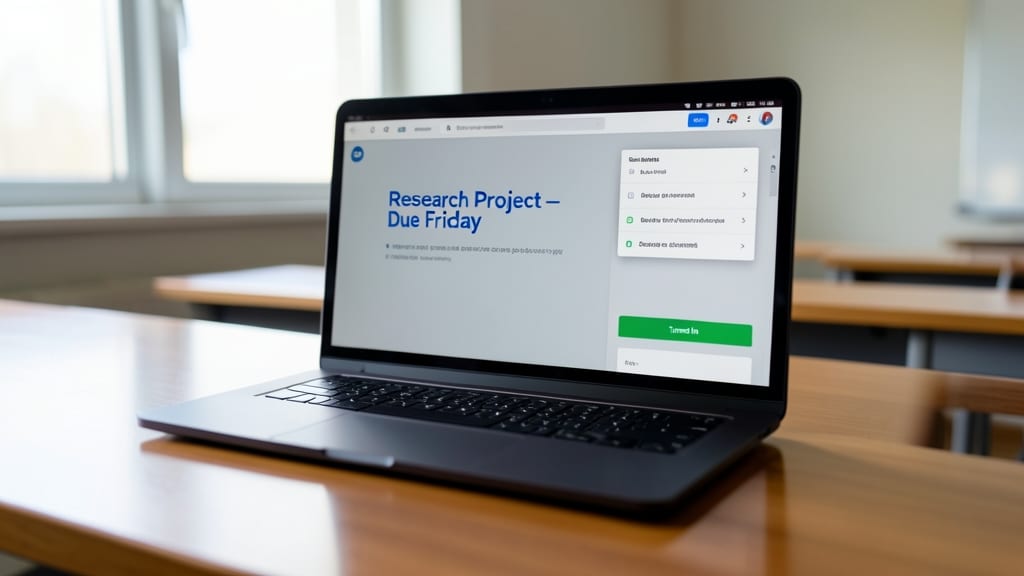
Say goodbye to stacks of papers and endless grading sessions—Microsoft Teams’ built-in assignment and grade management streamlines workflows for educators. With just a few clicks, you can create assignments, set deadlines, and even attach rubrics, all while students submit work directly through the platform.
The real-time tracking feature lets you monitor progress with progress bars and submission notifications, while the grading tool supports voice comments, text feedback, and even video replies. No more lost papers or misplaced grades—everything stays organized in one place, and you can even export grades to Excel for further analysis.
This is a game-changer for teachers juggling lesson plans and grading, especially those in high schools or colleges with heavy workloads. It’s the perfect tool for cutting down on administrative time while keeping students accountable. 💪
Parental Engagement Through Dedicated Channels

Forget the old "wait for the weekly newsletter"—Microsoft Teams gives parents instant access to classroom updates, event reminders, and even live discussions through dedicated Class Teams channels. No more missed announcements or last-minute surprises; everything from field trip sign-ups to homework deadlines appears in one secure, organized space.
Parents can subscribe to specific notifications (like test schedules or volunteer requests) and join parent-only channels to collaborate with other families. The Files tab lets them instantly access shared resources, while the Posts feature turns school announcements into interactive conversations. Schools using Microsoft Forms integration can even collect parent feedback directly in the app.
This feature is a game-changer for busy families and single parents who need flexibility. It turns passive communication into an active partnership between home and school. ✨
Secure File Sharing for Educational Resources
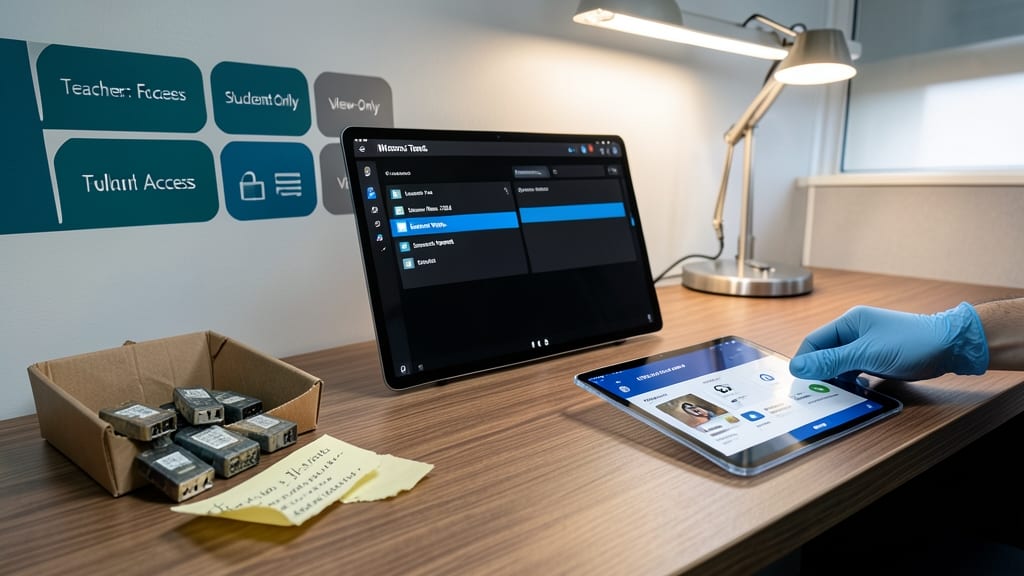
Say goodbye to USB drives and sketchy file-sharing links—Microsoft Teams keeps lesson plans, research papers, and video lectures locked down within your school’s secure ecosystem. With end-to-end encryption and role-based permissions, only authorized users (teachers, students, or admins) can access files, ensuring compliance with FERPA and other education regulations.
Upload large files up to 2GB (or 10GB with SharePoint integration) without worrying about corrupted downloads or version chaos. Need to share a 4K video tutorial? Teams handles it smoothly, while automatic version history lets teachers revert to previous drafts if needed. Plus, offline access means students can download materials for later review—no internet required.
This feature is a game-changer for district-wide curriculum sharing, where principals can distribute standardized resources to all schools while maintaining control. Teachers love it too—no more chasing students for lost files or dealing with broken links. 💻
Integration with Microsoft Office 365
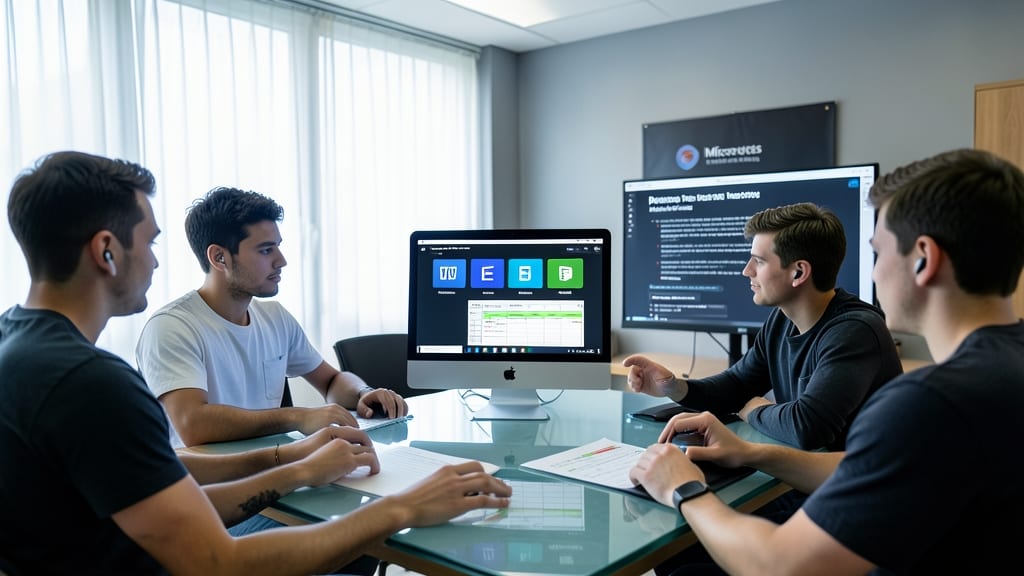
Tired of students juggling between Teams, Word, and PowerPoint during group projects? Microsoft Teams’ deep integration with Office 365 eliminates that friction entirely. With just a few clicks, teachers can launch live editing sessions in Word, analyze data collaboratively in Excel, or present slides directly in PowerPoint—all while students contribute in real time without ever leaving Teams.
The magic happens with co-authoring tools that show live cursors, track changes, and even highlight who’s editing which section. Need to brainstorm? OneNote integration lets students jot down ideas, sketch diagrams, or record voice notes—all synced instantly. For math teachers, the Excel integration turns classroom exercises into interactive spreadsheets where students solve problems together, with results updating dynamically.
This feature shines brightest for project-based learning, where students work on presentations, research papers, or data projects without version control headaches. Teachers love it for flipped classrooms, where they can assign pre-loaded Office files that students open, edit, and submit—all within Teams. ✨
Breakout Rooms for Small-Group Learning
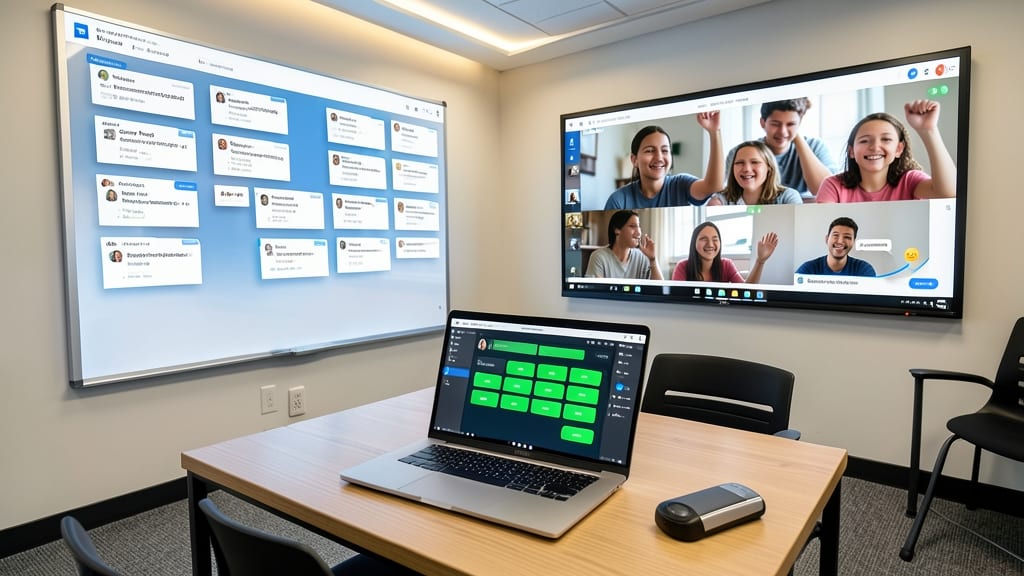
Need to recreate the energy of in-person group discussions? Microsoft Teams’ breakout rooms let teachers split classes into virtual subgroups with just a few clicks—no extra apps or complicated setups required.
With support for up to 50 breakout rooms per meeting, educators can assign students to discussions, peer teaching sessions, or project work instantly. The automatic rejoining feature ensures no one gets lost, while screen-sharing and chat tools keep collaboration seamless. Even shy students thrive when small-group dynamics lower the pressure of large-class interactions.
Perfect for language labs, debate teams, or STEM project groups, this tool turns passive viewers into active participants—all while keeping the teacher in full control. 🌟
Accessibility Features for All Learners
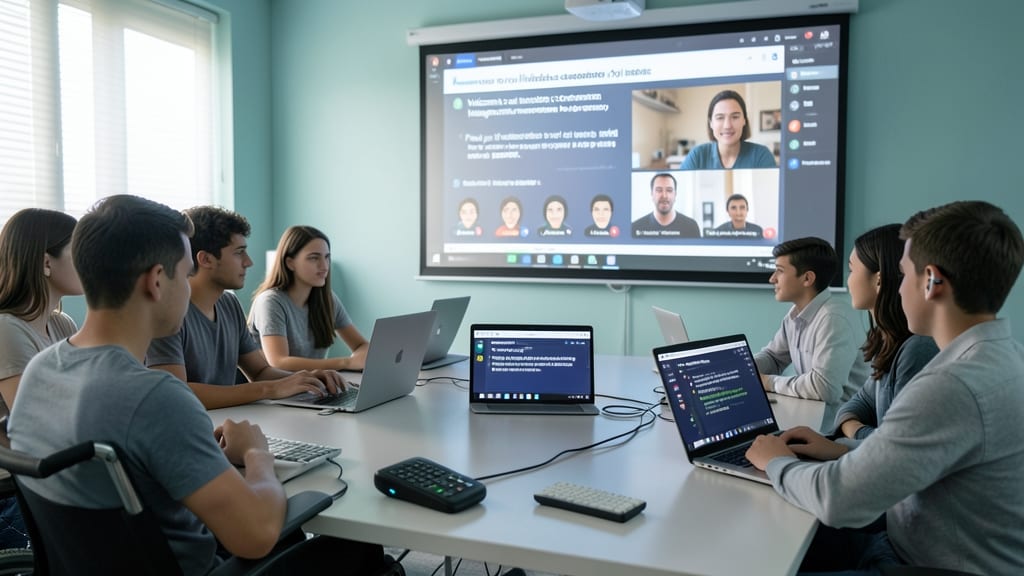
Every student deserves equal access to learning—but not all digital tools make that easy. Microsoft Teams bridges that gap with built-in accessibility features designed to ensure no learner is left behind, from real-time captions to screen reader support.
With live captions (available in 40+ languages), students who are deaf or hard of hearing can follow along in lectures without relying on others. The platform also integrates with screen readers like JAWS and NVDA, while customizable text sizes and high-contrast themes help students with visual impairments. For those with motor challenges, keyboard shortcuts and voice commands make navigation effortless.
This isn’t just about compliance—it’s about creating an inclusive environment where every student engages fully. Schools using Teams report higher participation rates among neurodiverse learners thanks to these thoughtful design choices. ✨
Cost-Effective Solution for Schools
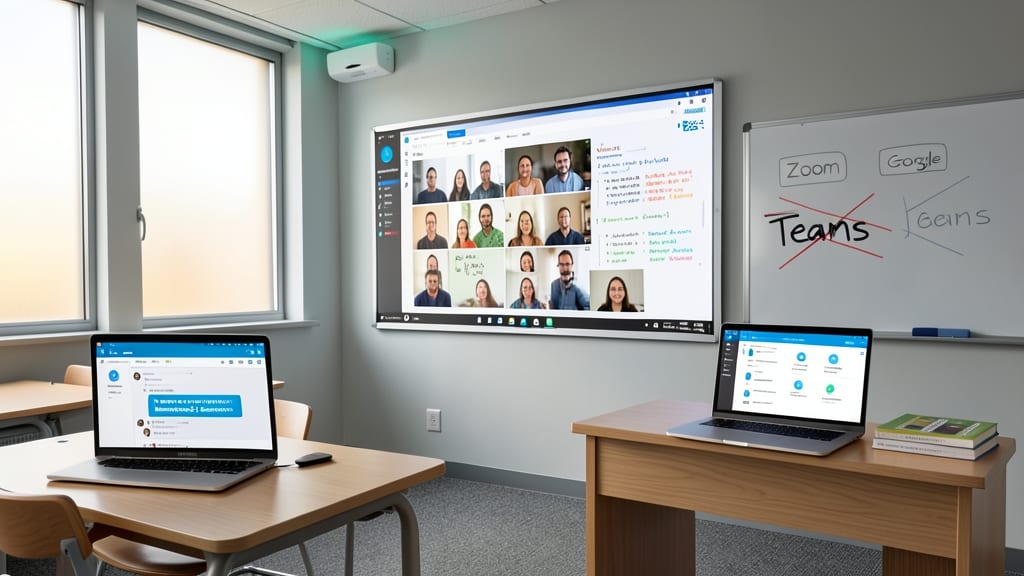
Budget constraints shouldn’t limit access to powerful educational tools. Microsoft Teams offers a completely free solution for schools already using Microsoft 365 Education, cutting out costly third-party alternatives like Zoom or Google Classroom add-ons.
With enterprise-grade security (including data encryption and compliance with FERPA/COPPA), schools get advanced features like unlimited storage and 24/7 support—all without hidden fees. The platform’s scalability ensures it grows with your institution, from single classrooms to entire districts, while zero-configuration deployment means IT teams spend less time troubleshooting and more time supporting teachers.
This makes Teams the ideal choice for resource-strapped schools looking to modernize without breaking the bank. 💡