
Software
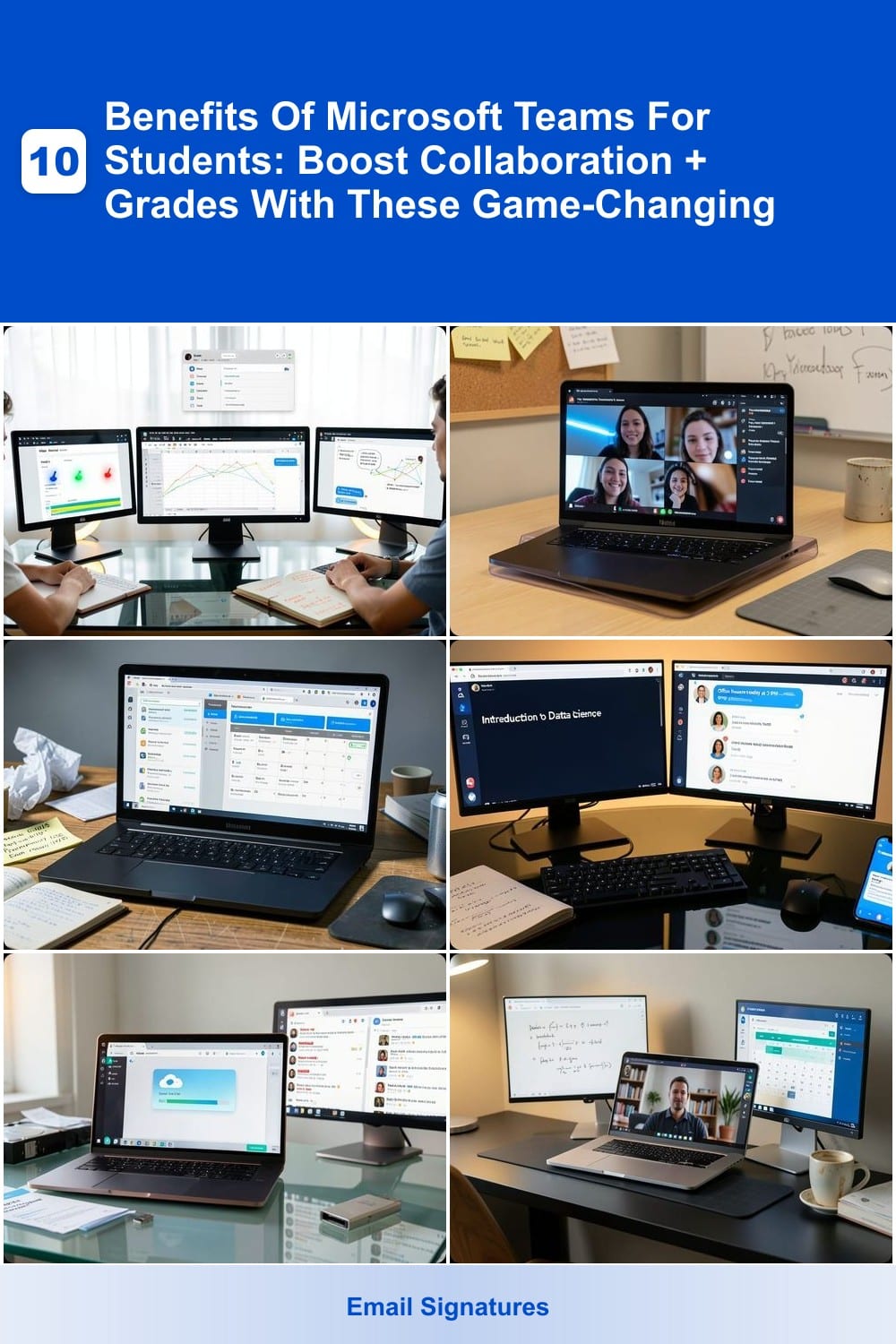
Struggling to balance group projects, study sessions, and deadlines? Microsoft Teams transforms student life by combining collaboration, organization, and communication—all in one powerful platform. These 10 game-changing benefits will show you how to leverage Teams to work smarter, not harder, and even improve your grades.
Real-Time Group Project Collaboration
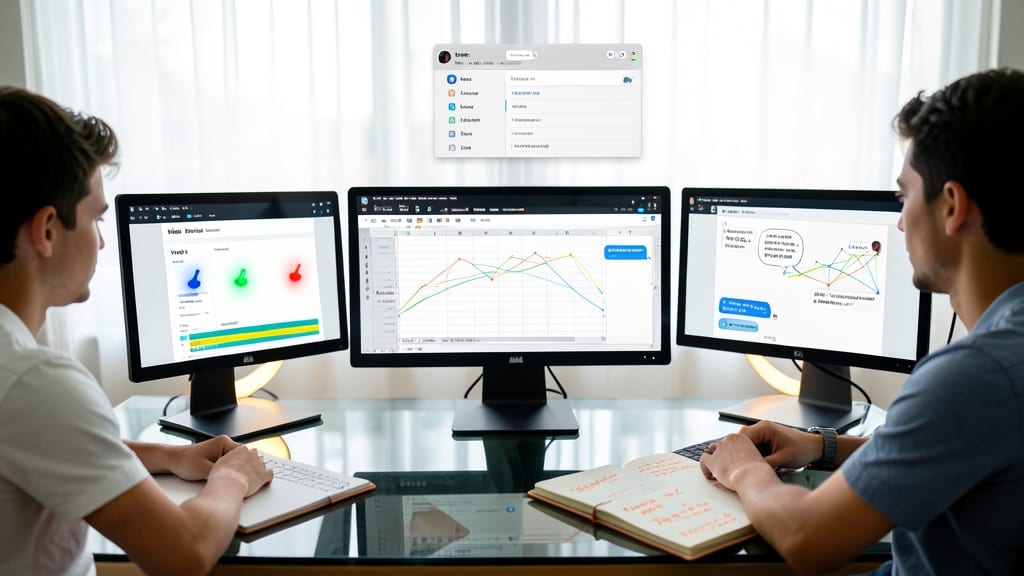
Tired of endless email chains where the latest version of your group project gets lost in replies? Microsoft Teams’ real-time co-authoring feature lets your team edit Word, Excel, or PowerPoint files together—simultaneously—with live cursors showing who’s working on what. No more "I saved over yours" disasters or frantic file attachments.
The version history tracks every change, so you can restore previous drafts or see exactly who made edits. Need to comment on a section? Use the built-in @mentions to tag teammates directly in the document. For tight deadlines, the task assignments feature lets you delegate sections and track progress—all without leaving Teams. Perfect for group papers, presentations, or coding projects where every second counts.
This is the ultimate solution for stressed students juggling group work with other assignments. No more "I didn’t get the file" excuses—just seamless collaboration that keeps everyone on the same page. ⚡
Built-In Video Study Sessions
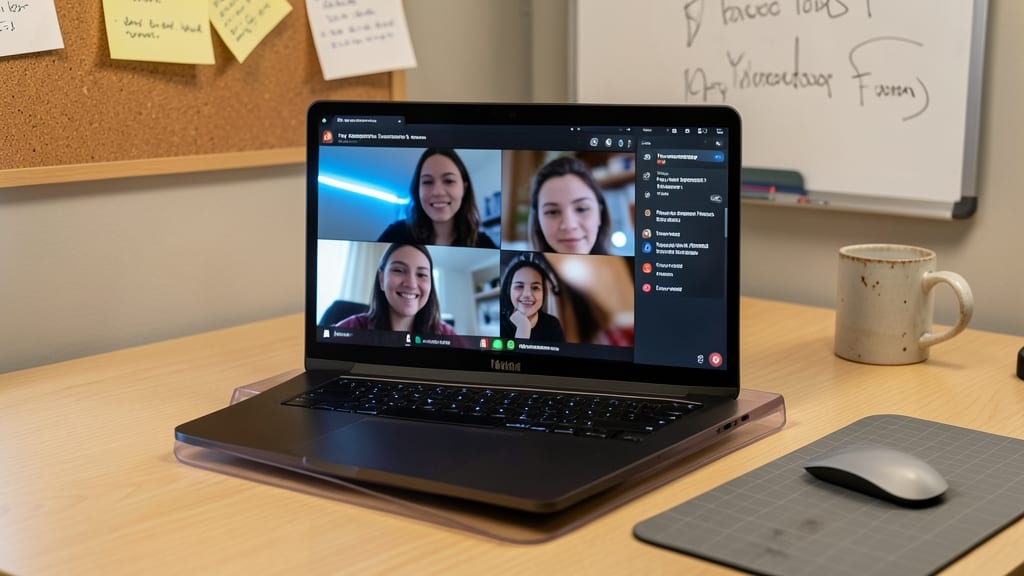
Struggling to find a way to host productive study sessions without the hassle of scheduling physical meetups? Microsoft Teams’ built-in video study sessions turn your laptop into a virtual classroom—complete with tools designed to keep your group focused and on track.
Start a video call with your study group, then use the shared whiteboard to brainstorm ideas, sketch diagrams, or solve problems together in real time. Need to break into smaller groups? The breakout rooms feature lets you split your session into focused discussions (like study pods) before reconvening—all without leaving the app. Screen sharing lets you walk through notes, highlight key concepts, or even review lecture slides side by side. Plus, the recording feature ensures no one misses a critical review session, so you can replay discussions later.
This is the perfect solution for night owls, commuters, or international students who can’t always meet in person. Whether you’re prepping for finals, tackling group projects, or just need accountability partners, Teams makes virtual study sessions as effective as in-person ones—without the coffee shop noise. ✨
One-Stop Assignment Organization
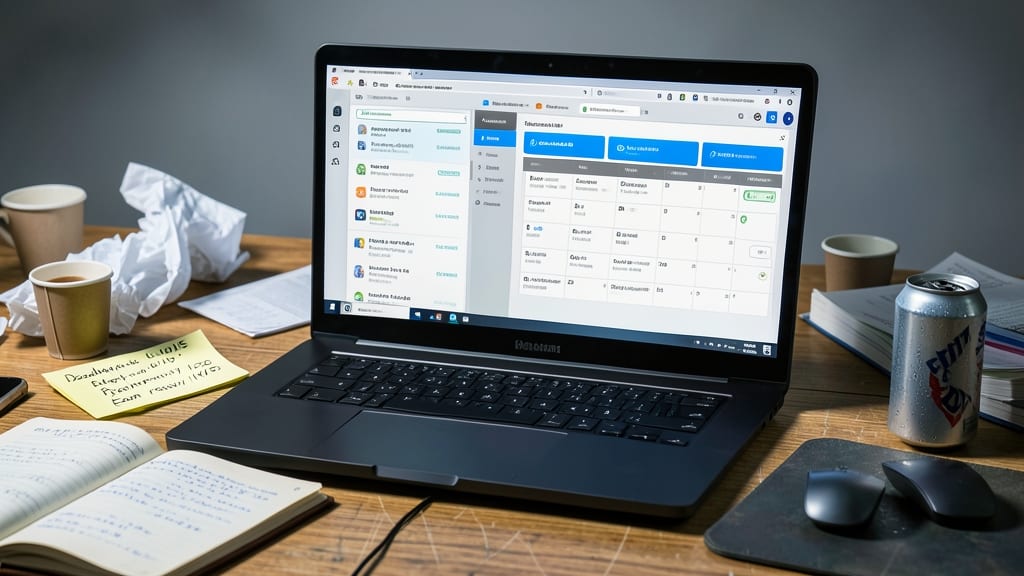
Endless tabs, scattered files, and missed deadlines? Microsoft Teams’ Assignment Hub turns the chaos into a single, searchable dashboard. No more digging through emails or losing track of submissions—just one place for syllabi, handouts, and due dates, all synced with your school calendar.
The Planner integration lets you drag-and-drop tasks directly into your Teams workspace, while the OneNote tab keeps lecture notes and research materials organized in one click. With automatic reminders for deadlines and file previews before submission, you’ll spend less time scrambling and more time focusing on what matters. ⚡
Instant Feedback with Class Channels
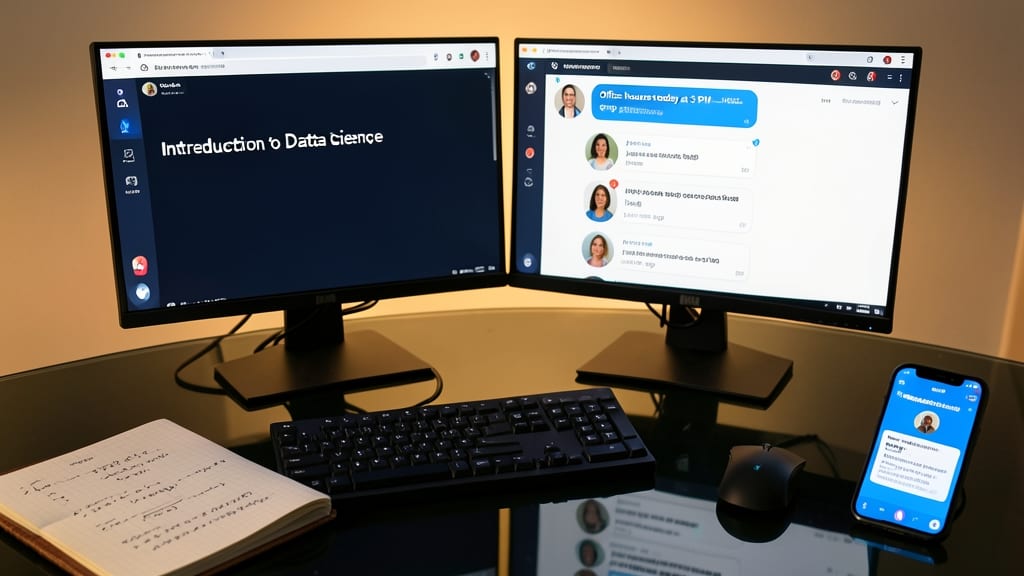
Forget waiting days for an email reply—Class Channels in Microsoft Teams turn passive learning into an interactive experience. Create dedicated channels for each course where professors can post announcements, and students can ask questions in real time. Unlike crowded group chats, these channels keep discussions organized by subject, so you never miss a key clarification.
With @mentions, you can tag professors directly for urgent questions, and the pinned posts feature ensures important deadlines or lecture notes stay visible. The platform also integrates with Office 365, so you can attach files like lecture slides or research papers to your questions for context. This streamlined approach cuts down on back-and-forth emails and keeps everyone on the same page before exams. ⚡
Secure File Sharing for Group Work
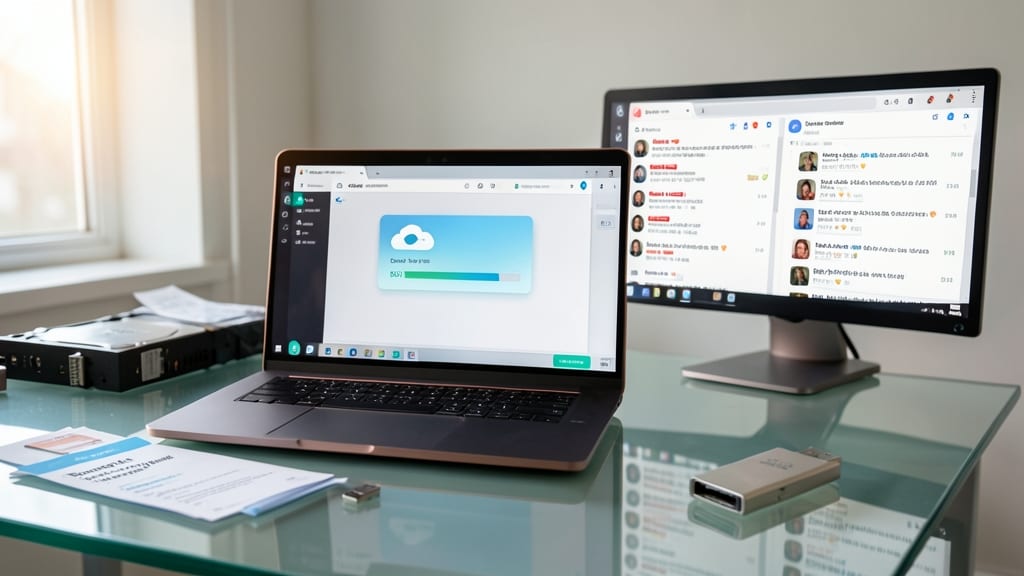
Tired of email bounces and lost group project files? Microsoft Teams lets you share large files up to 2GB—no attachments, no stress. The built-in OneDrive integration ensures every version is automatically backed up, so you’re never stuck with a corrupted file again.
With version control, you can track changes, restore old drafts, and even see who made edits—perfect for group projects where accountability matters. Plus, end-to-end encryption keeps your work secure, whether you’re collaborating with classmates or professors. No more "I didn’t get the file" excuses!
This is the ultimate solution for design projects, research papers, or multimedia presentations where file sizes matter. No extra apps or clunky transfers needed—just seamless sharing and peace of mind. ✨
Virtual Office Hours with Professors
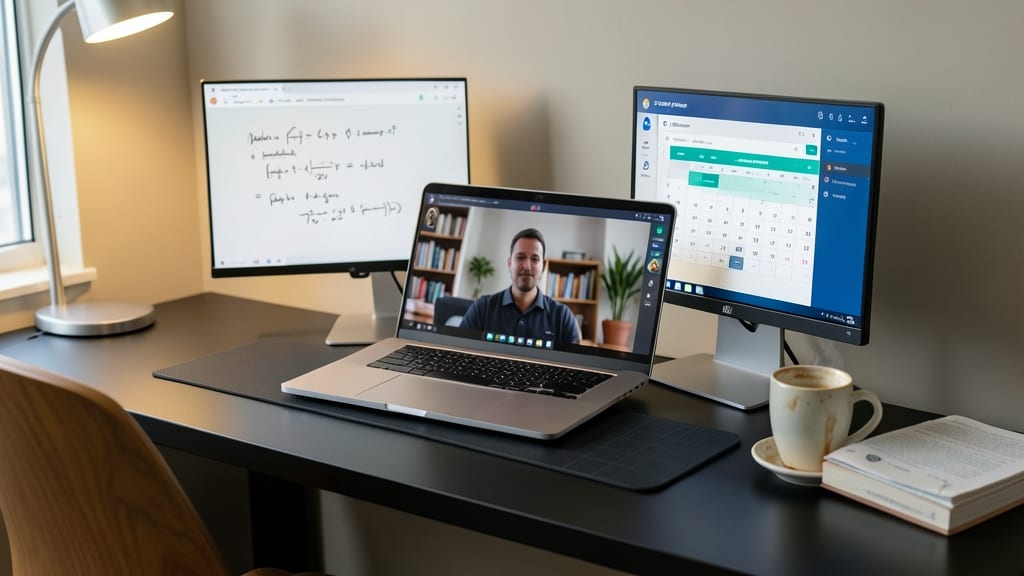
Forget waiting in line for campus office hours—Microsoft Teams lets you schedule direct video meetings with professors whenever it works for you. No more rushing to catch them between classes or dealing with last-minute cancellations due to traffic or conflicts.
With screen sharing and whiteboard tools, you can walk through assignments or research questions in real time, just like in person. Professors can even record sessions for later review, and the calendar integration syncs meetings automatically with your school’s schedule. Plus, the end-to-end encryption ensures your discussions stay private.
This is a game-changer for night owls, commuters, or international students—anyone who struggles with traditional office hours. 💻
Integration with Office 365 Tools
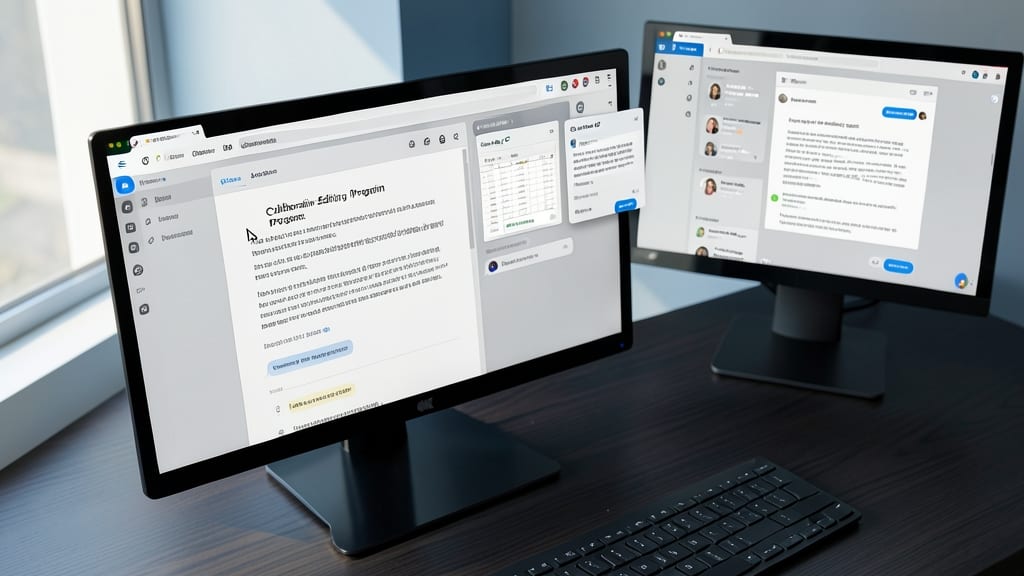
Tired of bouncing between Word, Excel, and PowerPoint while working on group projects? Microsoft Teams’ deep integration with Office 365 turns chaos into seamless workflows—no app-switching required.
Open a shared Word document directly in Teams chats, and watch as your team edits in real time with commenting tools and version history to track changes. Need to crunch numbers? Launch Excel spreadsheets with live updates, or design a PowerPoint presentation while discussing slides with peers—all without leaving the Teams interface. Files auto-save to OneDrive, so your work stays secure and accessible.
This is a game-changer for research papers, group presentations, or financial projects—whether you’re working solo or collaborating across time zones. Perfect for students who juggle multiple assignments and need tools that actually work together. ✨
Automated Reminders for Deadlines
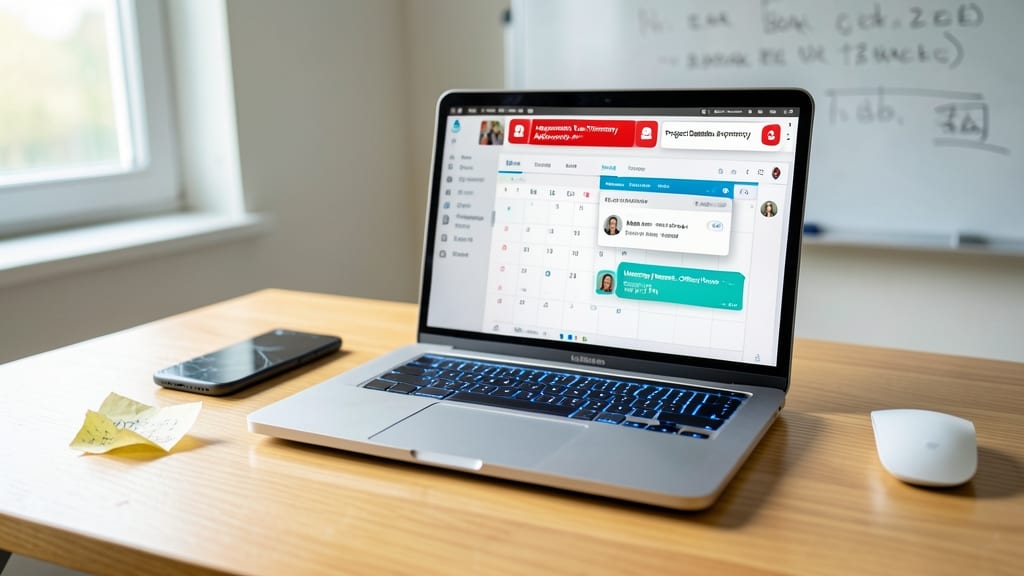
Forget scribbling deadlines on sticky notes or relying on your phone’s calendar—Microsoft Teams turns your study schedule into a self-managing powerhouse. With its built-in reminder system, you can set alerts for assignments, exams, and group meetings directly in the app, syncing with your school calendar for a unified view.
The system lets you customize notifications by priority level (high, medium, low) and even choose how they appear—whether as pop-ups, email alerts, or mobile push notifications. You can also set recurring reminders for weekly study sessions or project milestones, ensuring consistency without manual checks. Plus, the integration with Office 365 Calendar means no double-booking or missed deadlines when life gets chaotic.
This feature is a lifesaver for busy students juggling multiple courses or international group projects across time zones. Never stress about forgetting a submission again—Teams keeps you on track with minimal effort. ✨
Customizable Notebook for Class Notes
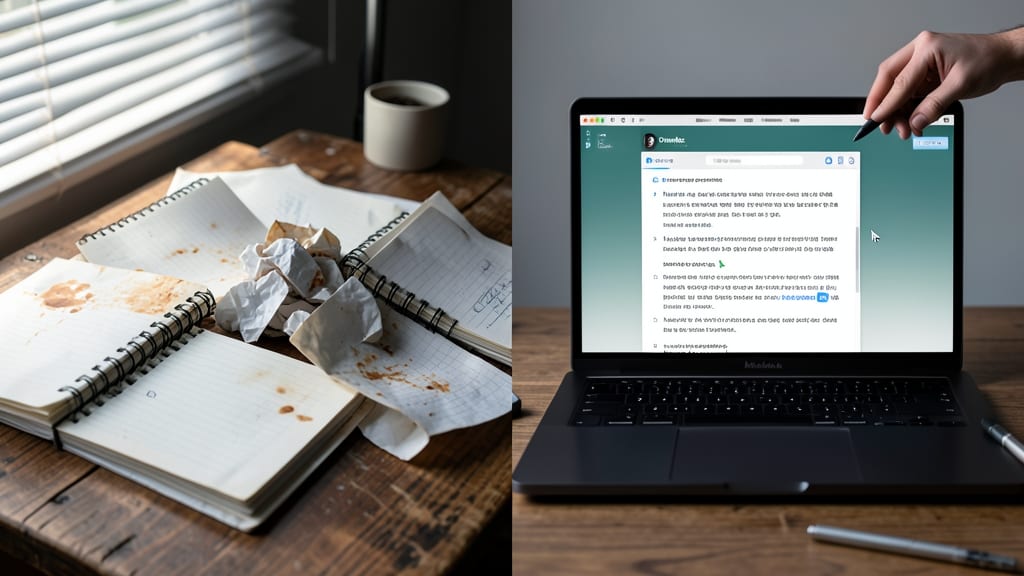
Tired of flipping through messy notebooks or losing handwritten lecture notes in a sea of papers? Microsoft Teams’ OneNote integration turns your class notes into a searchable, digital powerhouse—whether you scribble by hand or type like a pro.
With handwriting recognition, you can convert inked notes into editable text, highlight key points, and even search for specific terms across all your lectures. The tabbed notebook system keeps each class organized, while audio recording lets you capture lectures verbatim and sync them with your notes. No more frantically searching for that one page—just type a keyword and let Teams pull up the exact moment you need.
Perfect for note-taking styles—from artists sketching diagrams to fast typists jotting down bullet points—this feature is a lifesaver during finals week. ✨
Access Anywhere with Cross-Platform Sync
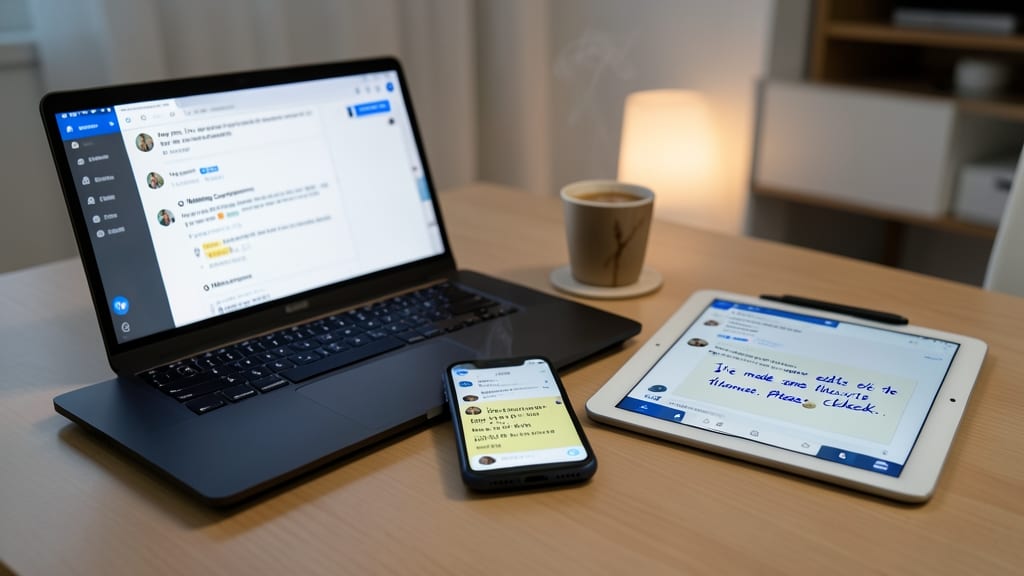
Forget being glued to your laptop—Microsoft Teams lets you pick up where you left off on any device. Whether you're jotting down ideas on your phone during a coffee break or reviewing group notes on your tablet before bed, your work stays perfectly in sync across Windows, Mac, iOS, and Android. No more scrambling to remember which version of the file you last edited.
The app mirrors your desktop experience, complete with chat history, file access, and active project tabs. Need to approve a classmate’s edits while waiting for the bus? Open Teams on your phone, see the latest changes, and even reply—all without logging into a different account. Offline mode ensures you can still view and edit files, then sync everything once you’re back online.
This is a game-changer for commuter students, international teams, or anyone juggling multiple devices. Whether you're collaborating with classmates across time zones or just switching between devices throughout the day, Teams keeps everyone aligned—no lost updates or version confusion. ✨