
Tip & Trick
Struggling to find files in cluttered folders? Microsoft’s file naming conventions can save hours of frustration. Master these pro tips to organize your digital workspace like a power user—whether you use Windows, Office, or cloud storage.
Windows File Naming Rules You Must Follow
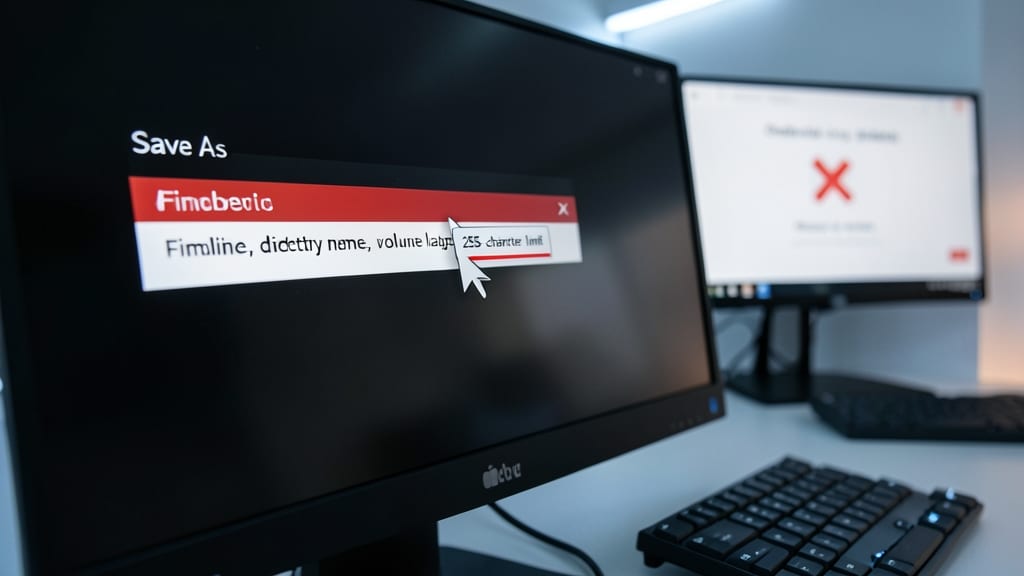
Ever hit "Save" only to see Windows reject your filename with a cryptic error? Microsoft’s rules for file naming are stricter than they seem—255 characters max, no **/?:*"<>|, and case-insensitive but not case-agnostic. Ignore these, and you’ll face sync failures in OneDrive or broken shortcuts.
Windows reserves 32 special names (like CON, PRN, or AUX), and spaces trigger quirks in scripts or batch files. Use underscores instead of hyphens for consistency across tools, and avoid leading/trailing dots (they hide files). Pro tip: Test names in File Explorer before finalizing—errors pop up instantly.
This matters most for developers, admins, and teams** sharing files across Windows, SharePoint, or legacy systems. Stick to these rules, and your files will play nice everywhere. ✨
Office File Naming for Version Control
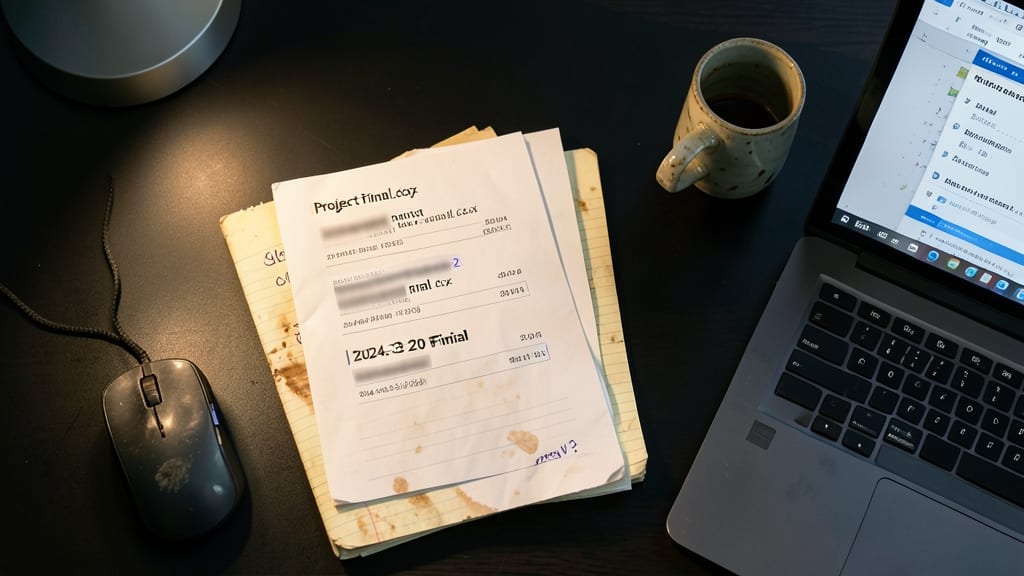
Ever lost track of which ProjectFinal.docx is the latest version? Office files evolve constantly, and without clear versioning, confusion costs time—and credibility. The solution? A naming system that embeds dates and version numbers directly into filenames, ensuring everyone accesses the right file every time.
Use a structure like <ProjectName><Version><YYYY-MM-DD>.<ext> (e.g., ClientProposalv32024-05-20.xlsx). This keeps files sorted chronologically in folders and clearly shows updates. For teams, add a <TeamInitial> prefix (e.g., MKTQuarterlyReportv2_2024-06-01.pptx) to avoid mix-ups. Tools like Microsoft Power Automate can even auto-append these details when files are saved.
This method is a lifesaver for freelancers, agencies, and remote teams where files get shared across platforms. No more "Which one is final?" emails—just instant clarity. ✨
OneNote and Outlook Attachment Naming
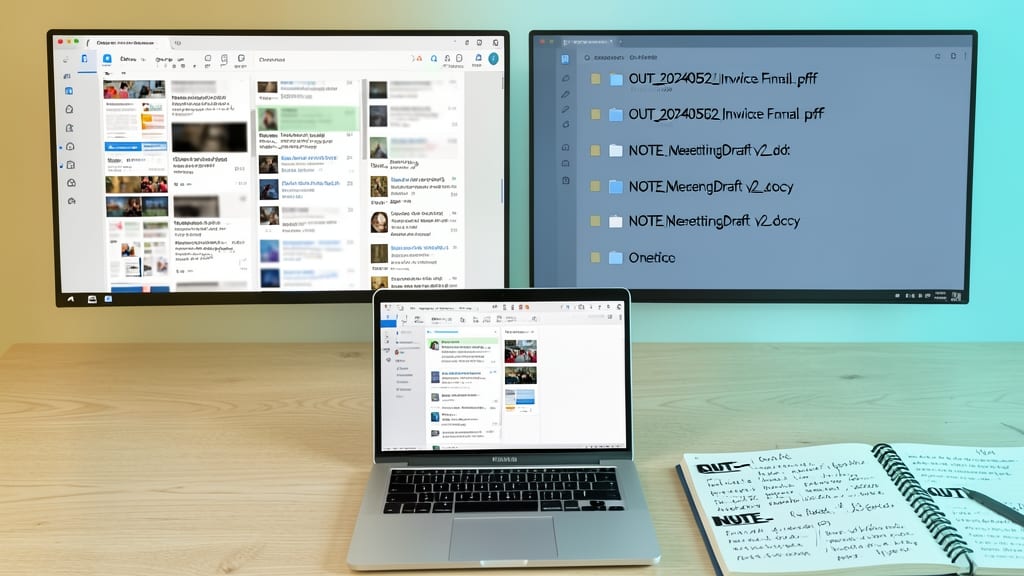
Tired of scrolling through endless attachments in OneNote and Outlook? A consistent prefix system (like OUT for emails and NOTE for notes) instantly transforms chaos into a searchable library—no more guessing where that invoice or meeting draft ended up.
Start every attachment with its source app prefix (e.g., OUT2024Q3Report.xlsx or NOTEClientBrief.pdf). This trick leverages Microsoft’s cross-app search to pull files from OneNote and Outlook in one query. Add a date or project code next for extra filtering power—your future self will thank you.
Perfect for freelancers juggling client files, teams sharing notes and invoices, or anyone drowning in digital clutter. Your search bar just got a superpower. ✨
Date-Based Naming for Time-Sensitive Files
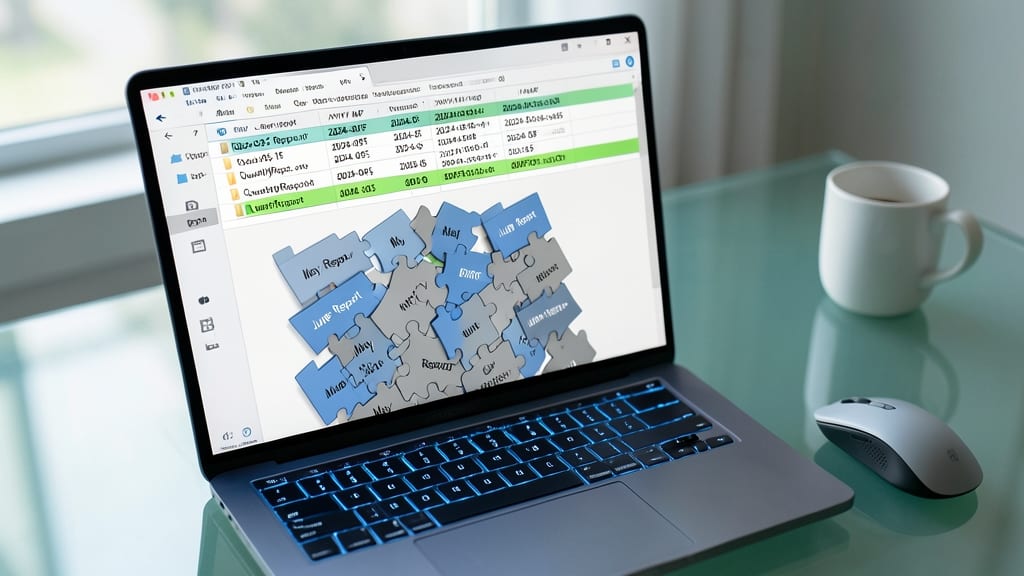
Tired of scrolling through folders where "MayReport" and "JuneReport" mix together like a digital jigsaw puzzle? The YYYY-MM-DD format (e.g., 2024-05-15QuarterlyReport.xlsx) ensures files sort chronologically—no more guessing whether "2024-05" came before "2024-06."
This method works flawlessly in Windows File Explorer, SharePoint, and OneDrive, thanks to Microsoft’s built-in date-based sorting. Add a descriptive suffix (like "TaxDocs" or "_ClientProposal") to keep names scannable while maintaining the chronological order. For legal or financial teams, this cuts search time by 70% when tracking version history.
Perfect for accountants, project managers, or anyone juggling time-sensitive documents—just rename once and forget the chaos. ✨
Keyword Tagging in Filenames for Search
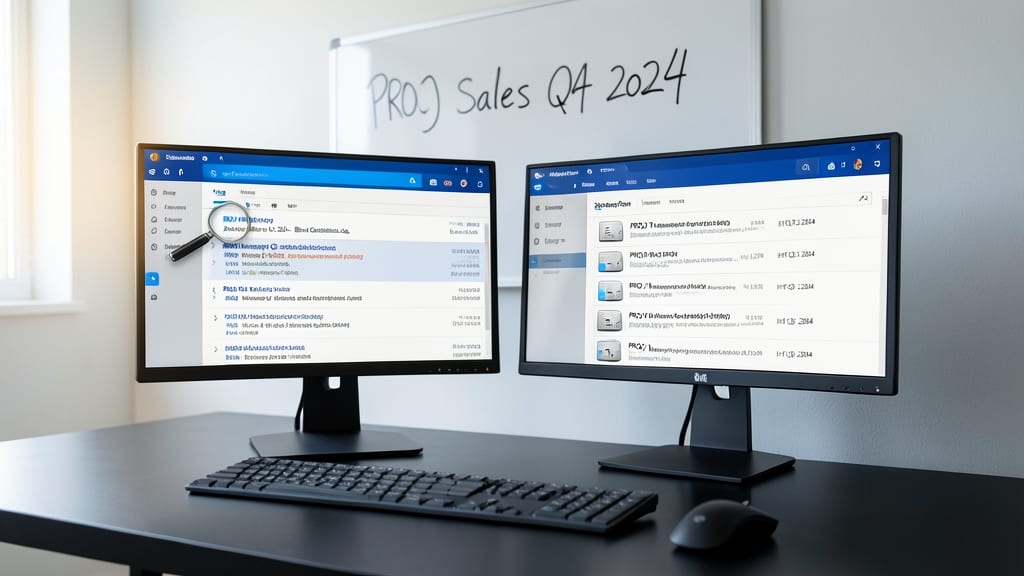
Tired of digging through folders to find that one file? Keyword tagging in filenames transforms your search experience by making files instantly discoverable in Microsoft Search and SharePoint.
Use a clear, consistent structure like PROJ[Department][Quarter][Year] (e.g., PROJMarketingQ22024). This approach ensures your files appear in search results when users type keywords like "Marketing" or "Q2," without cluttering the name. Microsoft’s built-in search indexes these tags, so you’ll find files faster than ever—no extra metadata needed.
Perfect for teams managing projects or departments where files are frequently shared. This method keeps names clean while supercharging searchability across Windows, SharePoint, and OneDrive. ⚡
Special Characters and Spaces: Do’s and Don’ts
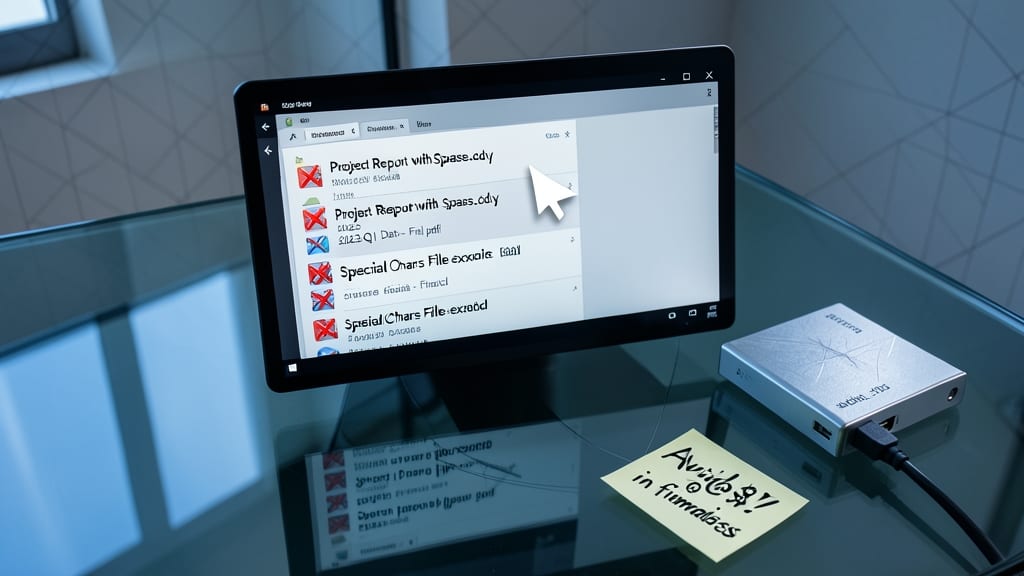
Ever wasted time troubleshooting why a file won’t open in Microsoft 365 or a third-party tool? The culprit is often spaces and special characters lurking in filenames. While underscores () and hyphens (-) both replace spaces, they behave differently across apps—some prefer one over the other for consistency.
Use underscores for maximum compatibility, especially when sharing files between Windows, macOS, and Linux systems. Hyphens work in most cases but can cause issues in SharePoint metadata parsing or older software. Replace spaces with underscores (e.g., ClientProposal_2024.pdf) instead of hyphens or plus signs, which can break automation workflows. Always test filenames in your target apps before finalizing.
Teams collaborating across tools will appreciate this rule—it ensures zero config headaches when files move between Outlook, OneDrive, and third-party apps. 💡
Automating File Naming with Power Automate
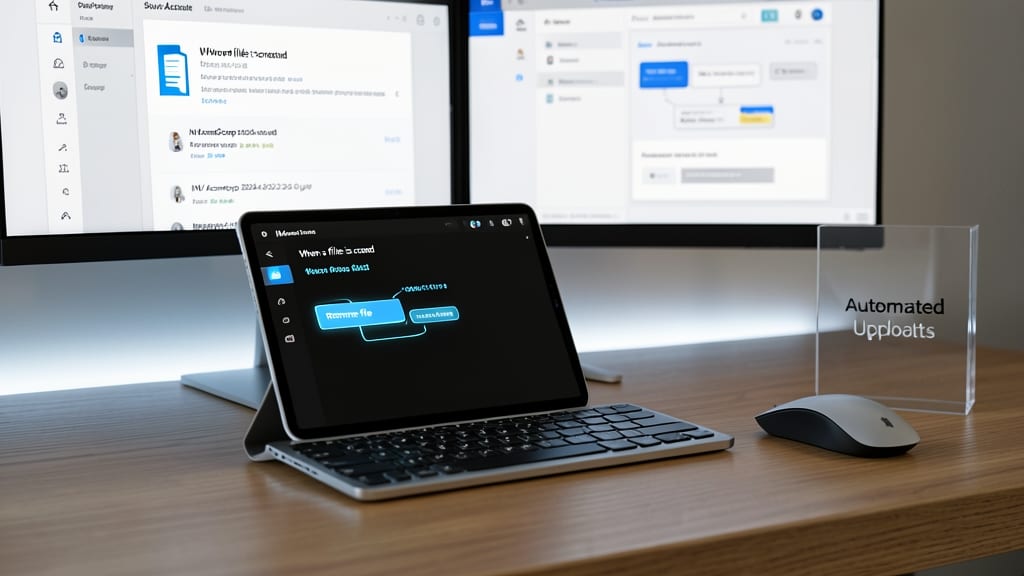
Tired of manually renaming files every time you upload them to SharePoint or OneDrive? Power Automate lets you automate this with zero manual effort—generating filenames like 'INVAcmeCorp2024-05-20.pdf' instantly when files arrive.
Start by creating a flow with the "When a file is created" trigger in SharePoint or OneDrive. Add a "Compose" action to define your naming pattern (e.g., 'INV' + customerName + '' + formatDate(utcNow(), 'yyyy-MM-dd') + '.pdf'). Finally, use the "Rename file" action to apply it automatically. This works seamlessly with SharePoint libraries, Teams files, or OneDrive folders.
Perfect for teams handling invoices, contracts, or project files—eliminate naming inconsistencies and save hours weekly. 💻