
Coding
Excel’s math and trig functions transform complex calculations into simple tasks. Whether you're analyzing data, building financial models, or solving engineering problems, these 10 essential functions will streamline your workflow and unlock advanced capabilities—no programming required.
Basic Arithmetic Operations With SUM Function

If you’ve ever spent hours manually adding numbers in Excel—whether tallying sales, tracking inventory, or balancing a budget—you’re about to discover your new shortcut. The SUM function is the unsung hero of spreadsheets, turning tedious arithmetic into a single click with precision every time.
Simply type =SUM(range) (e.g., =SUM(A1:A10)) to instantly add numbers across rows, columns, or even non-contiguous ranges. Need to sum an entire table? Drag the fill handle or use structured references like =SUM(Table1[Sales]). It even handles empty cells automatically, ignoring them in calculations. For dynamic ranges, combine it with SUMIF or SUMIFS to filter sums based on conditions—like calculating total revenue for a specific product category.
Accountants, small business owners, and data analysts rely on SUM daily to automate financial summaries, inventory counts, and performance metrics. Master this first, and you’ll build a rock-solid foundation for every Excel project. ⚡
Exponential Growth Calculations Using EXP Function

Tired of manually calculating compound interest or modeling population growth? Excel’s EXP function transforms exponential calculations into a single click—no more flipping through financial tables or wrestling with logarithms.
Simply input the exponent (e.g., =EXP(1) returns e ≈ 2.718, Euler’s number), and it computes e^x instantly. Perfect for financial analysts projecting loan growth or biologists modeling bacterial colonies, this function handles continuous compounding effortlessly. Combine it with LN() (from a future item) to reverse calculations or use it in array formulas for dynamic scenarios.
If your work involves exponential scaling—whether in economics, biology, or physics—EXP will cut your calculation time by 90%. No more guesswork, just precise, automated results. 💡
Angle Conversions With DEGREES And RADIANS Functions

Working with angles in Excel just got easier—thanks to the DEGREES and RADIANS functions. These two tools bridge the gap between the two most common angle measurement systems, ensuring your trigonometric calculations stay precise whether you're designing a bridge or analyzing survey data.
Use DEGREES to convert radians (like those from trig functions) to degrees, or RADIANS to convert degrees to radians. For example, =DEGREES(PI()/2) instantly converts π/2 radians to 90 degrees, while =RADIANS(180) converts 180 degrees to π radians. Both functions work seamlessly with other trig functions like SIN or COS, making complex calculations straightforward.
This pair is a game-changer for engineers, surveyors, and scientists—eliminating manual conversions and reducing errors in technical projects. ⚡
Trigonometric Ratios Using SIN, COS, And TAN

Need to calculate angles or sides of triangles for your next project? Excel’s SIN, COS, and TAN functions unlock precise trigonometric calculations—whether you’re designing a roof, plotting a course, or analyzing waveforms.
Input an angle in degrees or radians (Excel defaults to radians, but use DEGREES() to convert) to find opposite/adjacent/hypotenuse ratios instantly. For example, =SIN(30) returns 0.5 (half of a right triangle’s height), while =TAN(45) confirms a 1:1 slope. Combine with PI() for circular calculations or ROUND() to clean up decimals.
Architects, physicists, and navigators rely on these for real-world precision. Pair them with DEGREES() (from the previous item) to switch units seamlessly—no calculator needed! ✨
Logarithmic Calculations With LOG And LN Functions

When dealing with exponential relationships—like pH levels in chemistry or compound interest in finance—LOG and LN functions turn complexity into clarity. These functions let you work with base-10 logarithms (LOG) or natural logarithms (LN), making it easy to reverse exponential growth or compare ratios.
The LOG function calculates logarithms with base 10, while LN uses Euler’s number (≈2.718) as its base. For example, =LOG(100) returns 2 (since 10² = 100), and =LN(7.389) returns 2 (since e² ≈ 7.389). These are game-changers for scaling data, modeling decay, or analyzing growth trends.
Chemists, financial analysts, and data scientists rely on these functions daily. If you’re crunching numbers where ratios matter more than raw values, LOG and LN will save you hours of manual calculations. ✨
Power And Roots With POWER And SQRT Functions
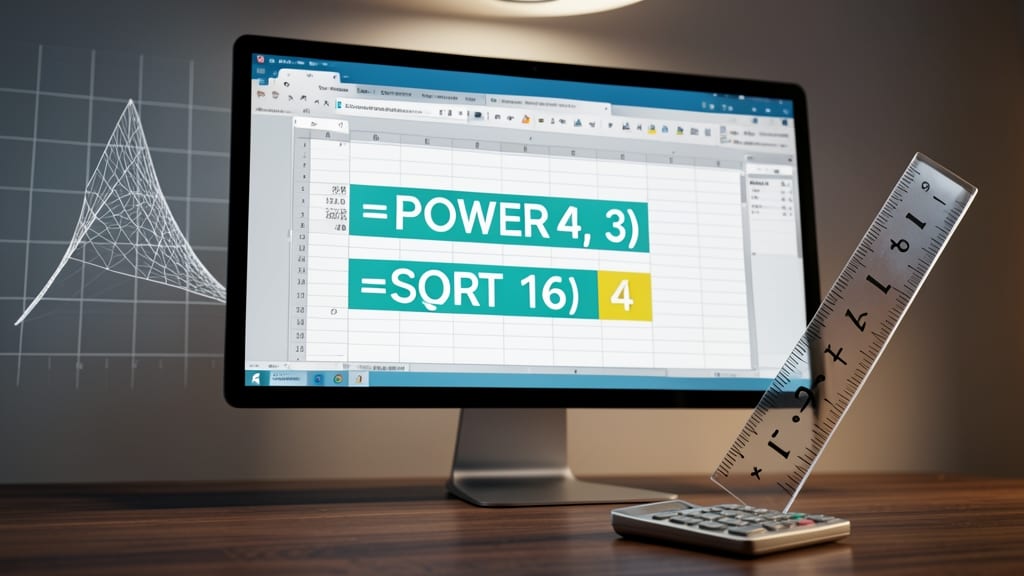
When your calculations involve raising numbers to powers or finding square roots—whether for compound interest, statistical variance, or physics simulations—Excel’s POWER and SQRT functions save hours of manual work.
The POWER function calculates any exponent (e.g., =POWER(4, 3) returns 64), while SQRT extracts square roots instantly (e.g., =SQRT(25) returns 5). Both work with cell references, letting you dynamically update results as data changes. For financial projections, use POWER to model growth rates, and SQRT to compute standard deviations in statistical analysis.
Data scientists and engineers rely on these for quick, accurate calculations without coding. Perfect for anyone crunching numbers beyond basic arithmetic. ✨
Random Number Generation Using RAND And RANDBETWEEN

Need to simulate dice rolls, generate test data, or model real-world probabilities? Excel’s RAND and RANDBETWEEN functions make it effortless to create dynamic random numbers—no add-ins required.
The RAND function spits out a decimal between 0 and 1, perfect for seeding simulations or creating random sequences. For specific ranges, RANDBETWEEN(min,max) lets you generate integers (e.g., RANDBETWEEN(1,6) for a six-sided die). Both recalculate automatically when you press F9, so your data stays fresh for repeated experiments.
Data scientists, game designers, and educators love these for Monte Carlo simulations, randomized surveys, or teaching probability concepts. Just remember: RANDBETWEEN is volatile—lock results with PASTE SPECIAL > VALUES to keep them static. ✨
Inverse Trigonometric Functions With ASIN, ACOS, And ATAN

When you know the sides of a triangle but need to find the angles—whether for 3D modeling, surveying, or flight navigation—Excel’s inverse trig functions are your secret weapon. Unlike SIN, COS, and TAN, which calculate sides from angles, ASIN, ACOS, and ATAN reverse the process, solving for angles in radians or degrees.
Use ASIN for arcsine (angles opposite known sides), ACOS for arccosine (angles between sides), and ATAN for arctangent (angles relative to a right angle). For example, =ATAN(1) returns π/4 radians (45°)—perfect for calculating slopes or rotations in game design. Combine with DEGREES() to switch to degrees instantly.
Engineers and game developers rely on these for precision calculations, while architects use them to determine roof angles or structural supports. If your workflow involves geometry, these functions save hours of manual plotting. ✨
Factorial And Permutation Calculations Using FACT And PERMUT
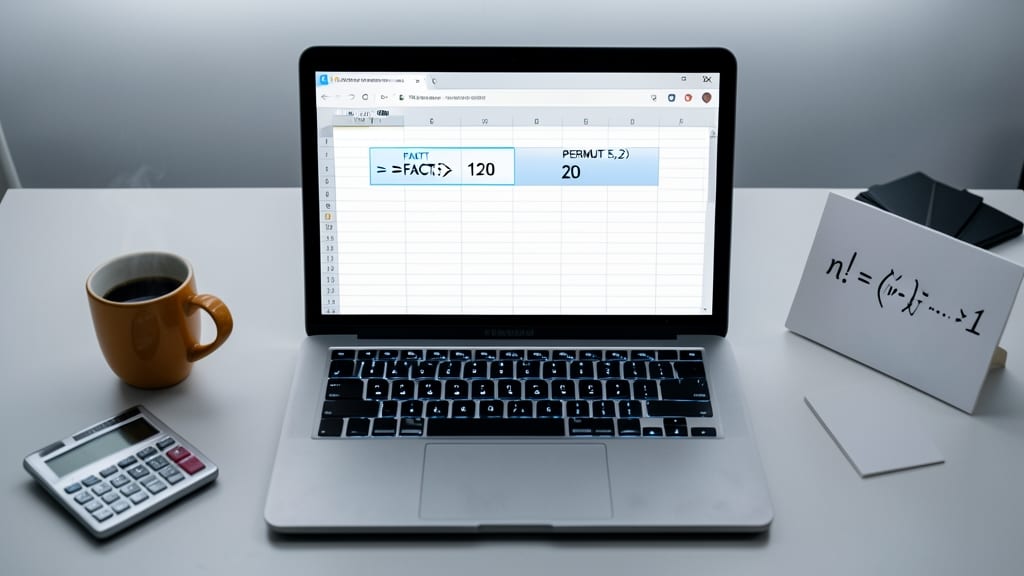
Tired of manually calculating factorials or permutations for probability studies or combinatorics? Excel’s FACT and PERMUT functions handle these heavy-lifting calculations instantly—no loops or programming required.
The FACT function computes factorials (e.g., =FACT(5) returns 120) for values up to 170, while PERMUT calculates permutations (e.g., =PERMUT(5,2) returns 20) for arranging n items from a set of k items. Both functions work seamlessly with cell references, making them ideal for dynamic datasets.
Perfect for statisticians, data analysts, and educators—these functions eliminate errors from manual calculations and speed up complex probability models. ⚡
Combining Functions With SUMPRODUCT For Advanced Math

When Excel’s basic functions leave you craving deeper calculations, SUMPRODUCT steps in as your secret weapon. Unlike SUM, it multiplies corresponding elements in arrays before summing the results—perfect for scenarios like weighted averages or financial projections where simple addition just won’t cut it.
This powerhouse function lets you combine up to 30 arrays (though most practical uses require far fewer) and handles everything from discounted cash flow calculations to multi-variable regression analysis. For example, =SUMPRODUCT(A2:A10, B2:B10) multiplies and sums each pair of values in columns A and B, giving you a weighted total in seconds.
Financial analysts, data scientists, and even small business owners will find SUMPRODUCT indispensable for complex modeling without VBA. It’s the ultimate shortcut for turning raw data into actionable insights. ✨