
Software
Microsoft Teams channels can transform collaboration—but only if used strategically. These 10 best practices help teams organize workflows, reduce noise, and boost productivity by leveraging channels effectively for every stage of a project.
Standardize Channel Naming Conventions for Clarity
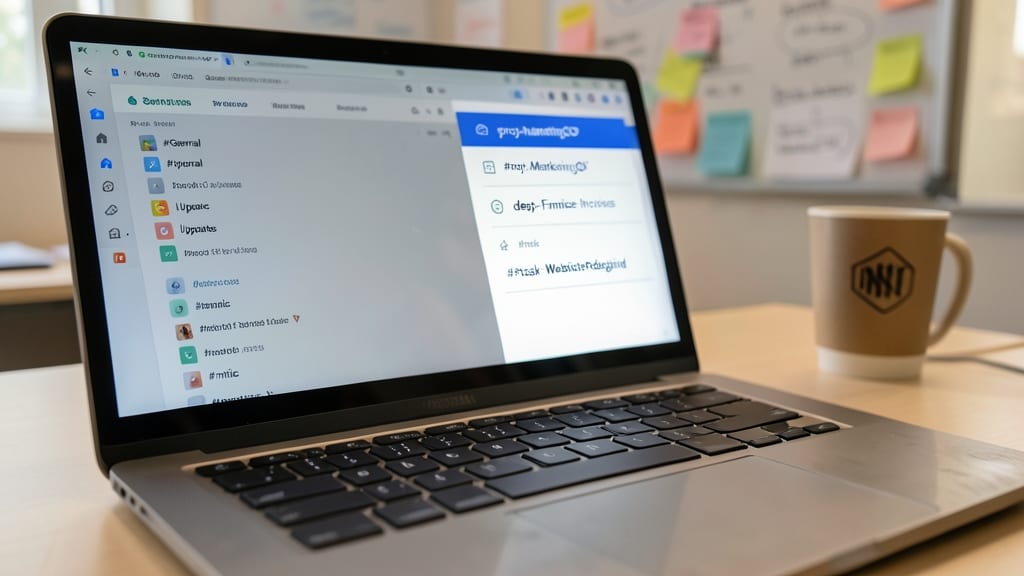
Ever spent 10 minutes scrolling through a Teams channel list, squinting at vague names like "#General" or "#Updates"? A standardized naming system turns chaos into clarity—especially for teams with 50+ members or cross-department projects.
Start with clear prefixes like #proj-[Name] for project-specific channels or #dept-[Team] for departmental spaces. Avoid generic terms like "General" or "Random Stuff"—these become black holes for off-topic chatter. For example, #proj-MarketingQ3 instantly tells everyone this channel is for Q3 marketing initiatives, not random brainstorms.
This approach works best for large organizations with multiple teams, but even small groups benefit from consistency. It cuts down on confusion and makes onboarding new hires a breeze. ✨
Use Private Channels for Sensitive Discussions
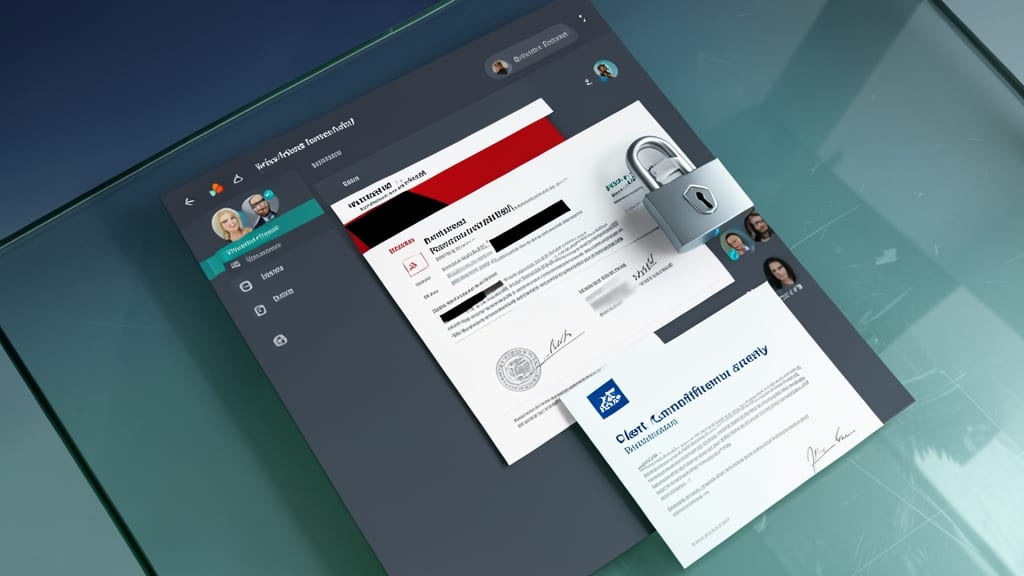
Not every conversation belongs in the open—especially when dealing with HR policies, legal contracts, or client-sensitive data. Microsoft Teams’ private channels solve this by creating secure spaces where only invited members can access discussions, files, or shared tools.
To set one up, start in your team’s channel list, click the three dots (⋮) → "Add channel" → toggle "Private" on. You’ll then assign specific team members (no accidental access) and enable end-to-end encryption for files. This ensures compliance with regulations like GDPR or HIPAA while keeping internal debates—like salary negotiations or project risks—confidential.
Ideal for legal teams, HR departments, or project managers handling client deliverables, private channels turn Teams into a zero-trust workspace. 💻
Leverage Tabs for Centralized Resource Access
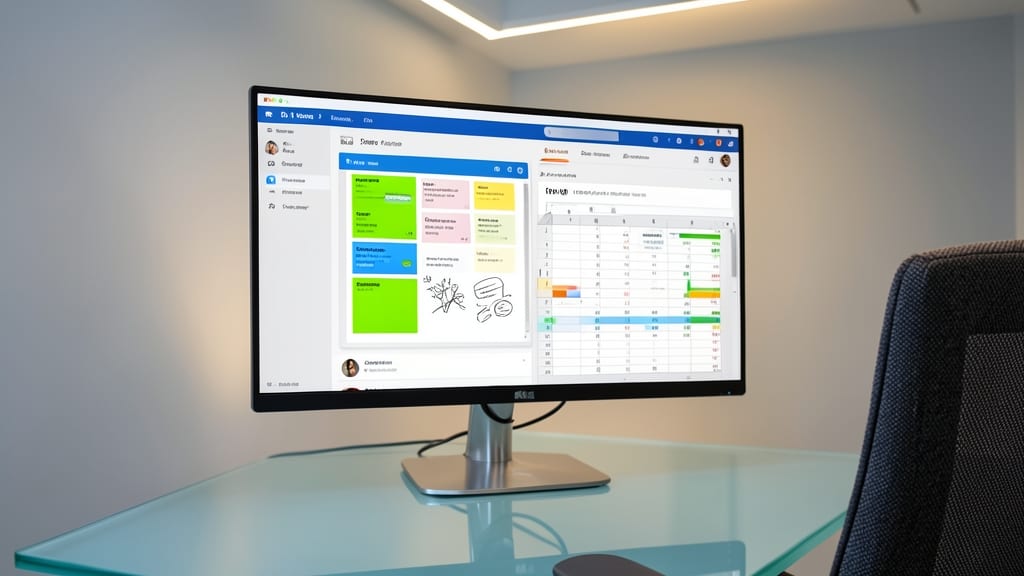
Tired of juggling browser tabs between Trello, OneNote, and shared files? Microsoft Teams tabs turn your channels into a one-stop workspace—no more tab-switching madness.
Embed Trello boards, OneNote documents, or Excel spreadsheets directly into channels, keeping everything visible and searchable. Pin your most-used tools (like Power BI dashboards or Google Drive folders) for instant access. The best part? Teams integrates with 300+ apps, so you’re not stuck with limited options.
Perfect for marketing teams tracking campaigns, developers managing sprints, or remote teams sharing resources—anyone drowning in scattered tools. ⚡
Set Channel Owners and Moderators

Ever scrolled through a chaotic #announcements channel where half the posts are outdated or off-topic? Assigning channel owners and moderators in Microsoft Teams puts the reins in the right hands—literally. This feature lets you designate trusted users to manage permissions, delete clutter, and pin critical updates, ensuring high-traffic spaces stay organized without requiring admin access.
Owners can add/remove members, edit channel settings, and control tabs, while moderators handle post deletions, edits, and pinning key messages. For example, a support channel might have a moderator to remove duplicate FAQs, while an #events channel owner can restrict access to approved team members. The best part? These roles are customizable—assign them based on expertise, not just hierarchy.
This works best for cross-functional teams (like IT or marketing) where multiple stakeholders need oversight without full admin rights. It’s the difference between a channel that runs smoothly and one that spirals into disarray. 💪
Implement Channel Descriptions and Guidelines
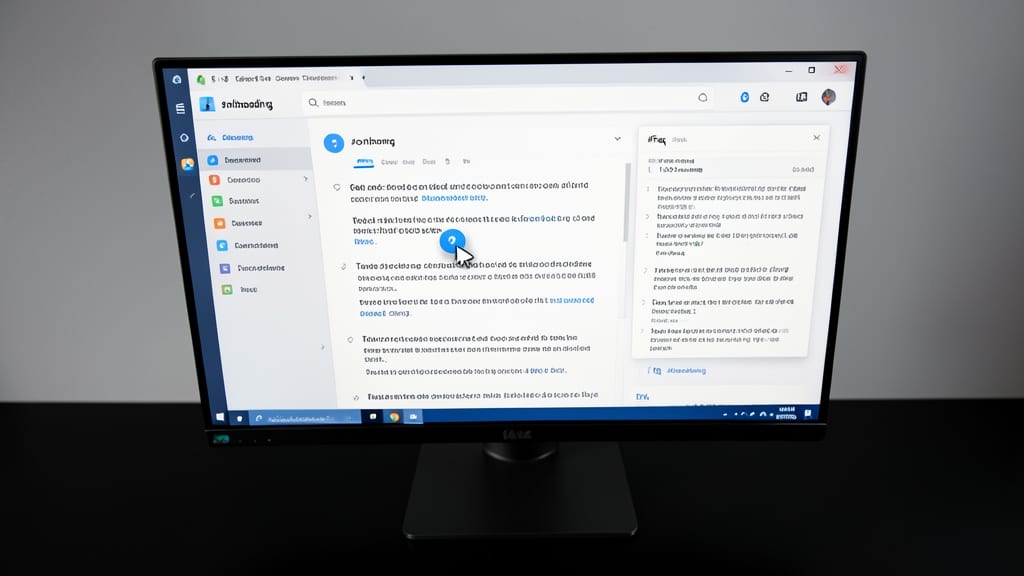
Tired of answering the same questions over and over in #onboarding or #faq channels? A clear channel description acts as your team’s first line of documentation, instantly setting expectations for new members.
Microsoft Teams lets you add detailed descriptions (up to 1,000 characters) to any channel, including formatting like bullet points, emojis, and links. Specify key topics (e.g., "Weekly standups on Mondays") and posting rules (e.g., "No off-topic discussions") to streamline onboarding. For example, your #support channel could
Archive Inactive Channels to Declutter Spaces
Tired of scrolling through a wall of outdated channels like #project-old2023 or #marketing-2022 that still clutter your Teams workspace? Archiving inactive channels is the secret weapon to reclaim focus and cut through the noise.
Microsoft Teams makes it easy to archive channels with just a few clicks—no data loss, just a cleaner interface. Archived channels remain searchable and accessible if needed, while removing them from your main navigation. This simple step can slash notification overload by up to 30% for teams juggling multiple projects. Plus, it’s perfect for agencies or departments with frequent turnover, where old channels pile up faster than you can say "end-of-quarter."
Whether you’re a marketing team wrapping up a campaign or a dev squad finishing a sprint, archiving keeps your workspace lean—so you can focus on what matters. 💪
Use Threaded Replies for Focused Discussions

When a single message sparks a 50-reply debate, your channel turns into digital chaos. Threaded replies in Microsoft Teams solve this by nesting discussions directly under the original post, keeping the main thread clean and scannable.
Enable them by clicking the three-dot menu on any message and selecting "Reply in thread." This feature works seamlessly on desktop and mobile, and you can collapse threads to focus on high-priority conversations. For teams drowning in notifications, threaded replies cut clutter by 90%, according to Microsoft’s internal productivity studies.
Perfect for customer support teams handling ticket discussions or marketing groups brainstorming campaigns—anyone who needs to track context without losing their place in the conversation. 💡
Schedule Regular Channel Cleanup Meetings
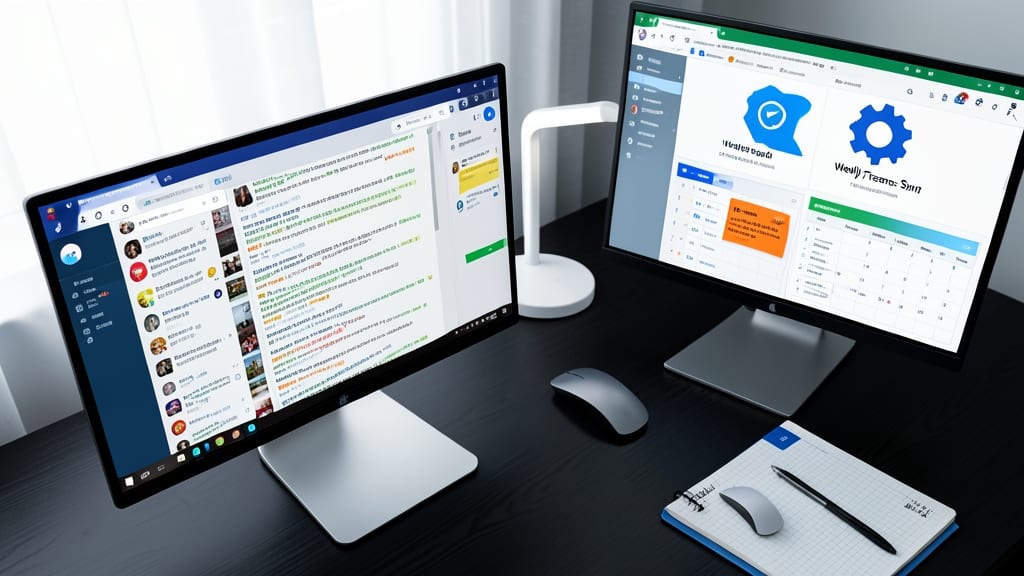
Tired of scrolling through outdated messages and cluttered files in your Teams channels? A 15-minute weekly cleanup sync can transform chaos into clarity—without disrupting workflows.
Assign a dedicated team member (or rotate the role) to lead a quick audit of each channel. Use Teams’ built-in tools to archive old posts, remove duplicate files, and unpinned inactive tabs. Pro tip: Set a recurring calendar invite labeled "Channel Tidy-Up" to keep it top of mind. This small habit prevents channels from becoming a graveyard of irrelevant content.
Perfect for remote or hybrid teams where physical cleanup isn’t an option, this practice keeps channels searchable, relevant, and engaging for everyone. 💪
Enable Channel Notifications Selectively

Drowning in a sea of notifications from Teams channels? You’re not alone—notification fatigue is a real productivity killer for teams juggling multiple active channels.
Microsoft Teams lets you customize alerts per channel so you only get notified for what matters. Toggle between @mentions only, specific keywords (like "urgent" or "blocker"), or all messages—giving you control over your inbox. For example, set #marketing to notify only on @mentions while keeping #announcements on "all" for critical updates. The mobile app even lets you adjust these settings on the go.
This is a game-changer for developers, customer support teams, or managers balancing cross-functional channels. Fine-tune your alerts to stay focused without missing critical updates. ✨
Train Teams on Channel Etiquette and Tools

Ever noticed how some teams master Microsoft Teams while others struggle with basic features? The solution isn’t just organization—it’s education. A quick training session on pinned posts, file-sharing shortcuts, and slash commands (like /poll or /remind) can cut down on repetitive questions and wasted time.
Start with a 15-minute demo showing how to pin critical updates at the top of channels, use @mentions strategically, and leverage /commands for quick actions (e.g., /translate for multilingual teams). Highlight file-sharing best practices, like uploading directly to channels instead of external links, to keep everything centralized. A cheat sheet with these commands printed out can serve as a quick reference for new hires or remote teams.
This approach works best for cross-departmental teams or organizations with high turnover, where consistent tool usage prevents workflow bottlenecks. A little training goes a long way—your teams will thank you for the clarity! ✨