
Operating System
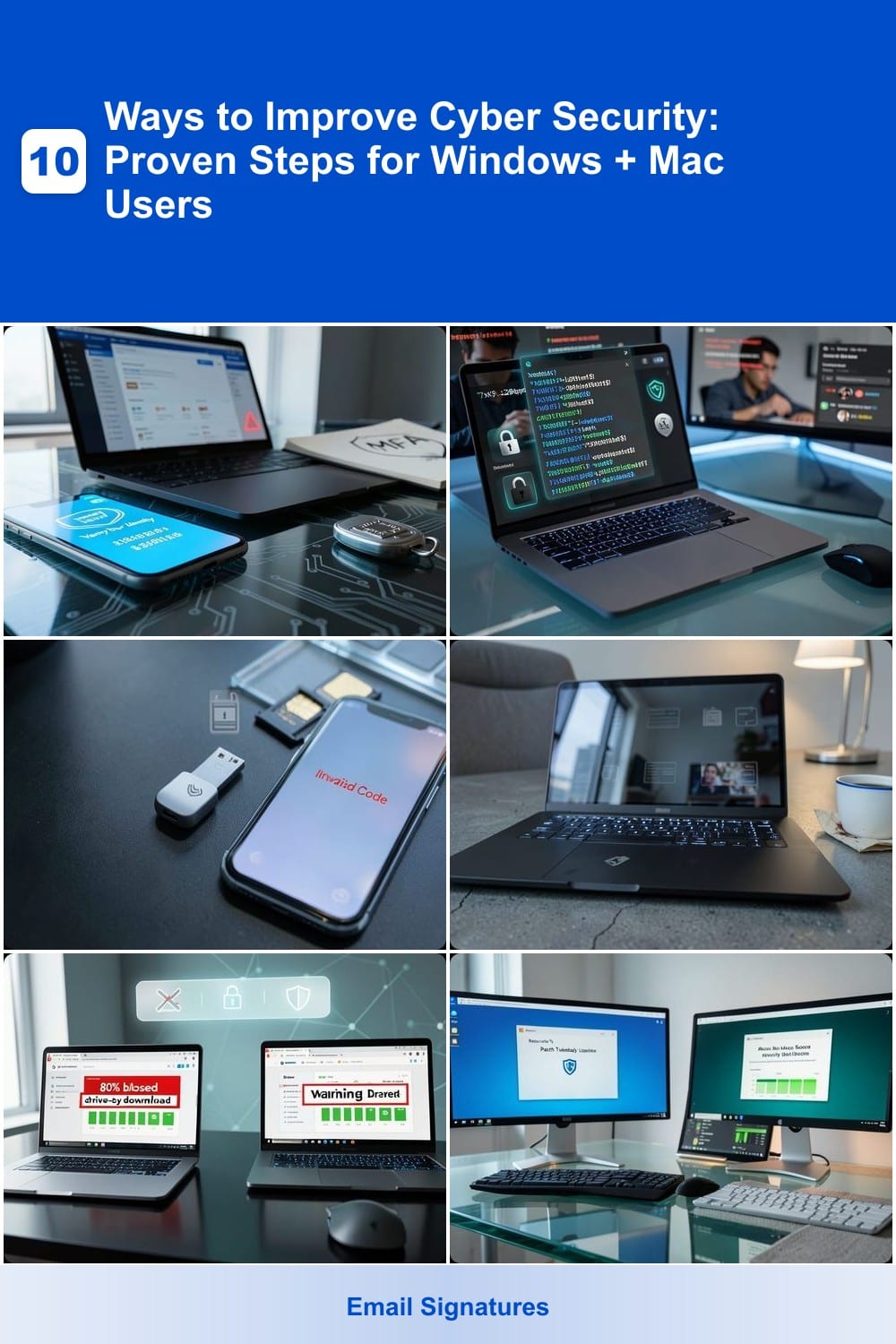
Cyber threats evolve daily, but these 10 actionable steps will fortify your Windows or Mac against hackers, malware, and data breaches—without requiring advanced technical skills. From password management to browser hardening, these proven tactics work for both beginners and power users.
Enable multi-factor authentication everywhere
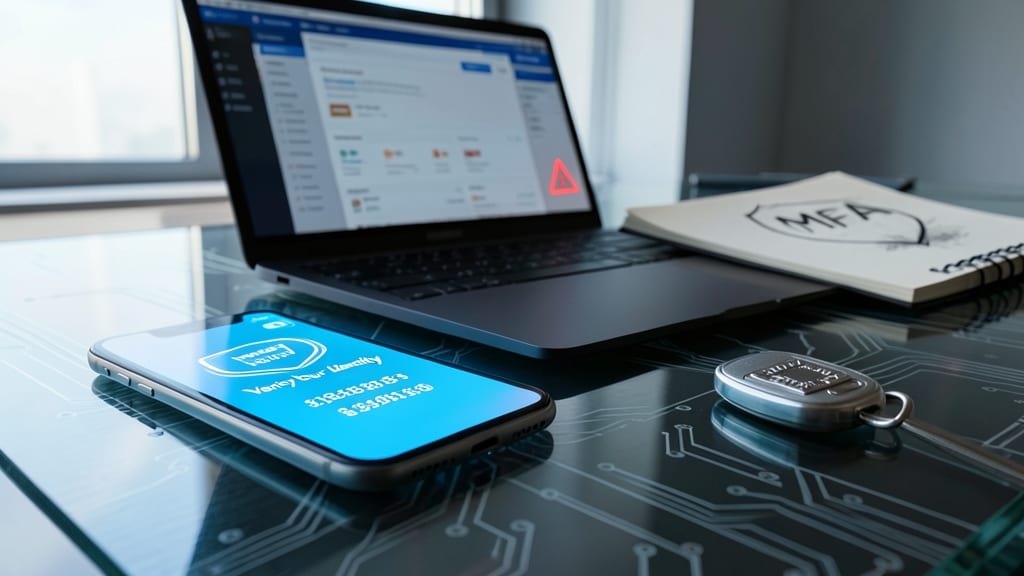
If your email or bank account feels like a target, multi-factor authentication (MFA) is your digital bodyguard—slashing breaches by 99.9% when used consistently. Unlike passwords alone (which hackers crack in seconds), MFA adds a second layer, like a code from an app or a push notification, forcing attackers to jump through hoops even if they steal your password.
Most services—Google, Microsoft, Facebook, and even Apple—support MFA via authenticator apps (like Microsoft Authenticator or Authy) or hardware keys. For Windows users, enable it in Account Settings > Security, while Mac users toggle it in System Preferences > Apple ID. The best part? Zero-config setup takes minutes, and many platforms now require it by default for sensitive actions like password resets.
This is non-negotiable for freelancers, small business owners, or anyone with financial accounts—especially since SMS-based codes (the weakest link) are easily hijacked via SIM swaps. With MFA enabled everywhere, even a leaked password won’t unlock your accounts. ⚡
Use a password manager with secure vault
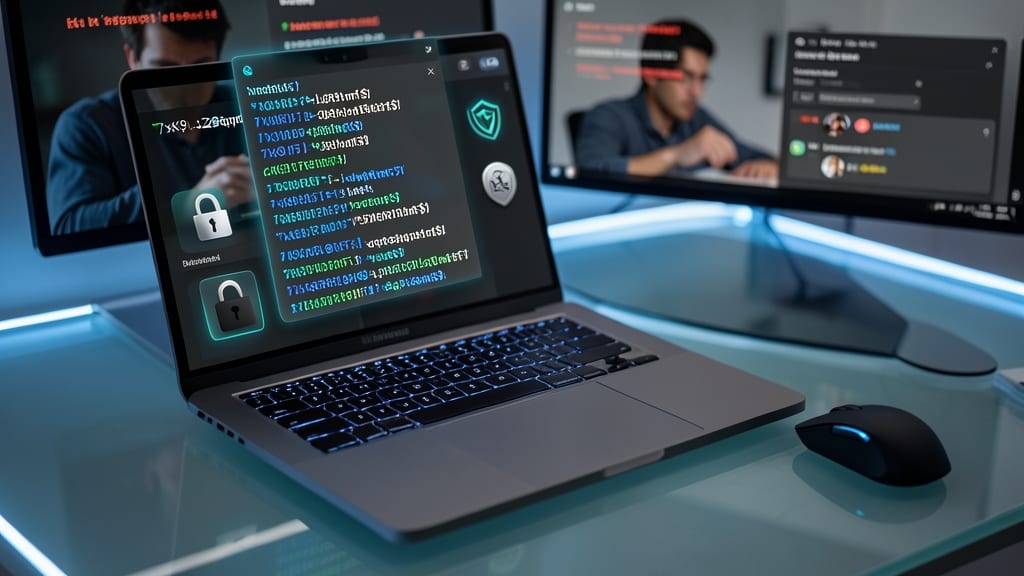
Tired of resetting passwords every other month? A password manager with a secure vault eliminates weak credentials and autofills complex, unique passwords—while keeping them locked away from keyloggers and brute-force attacks. Unlike MFA (which only protects login attempts), these tools encrypt your entire password database with AES-256, the same standard used by governments and banks.
Top tools like Bitwarden (free and open-source) or 1Password (user-friendly with Travel Mode) store passwords locally on your device, syncing securely via end-to-end encryption. Features like biometric unlocks and emergency access add extra layers, while password audits flag reused or weak passwords. Even better, they integrate with browsers to auto-fill logins—no more typing or storing passwords in sticky notes.
This is a must-have for power users, freelancers, and families sharing devices—especially if you juggle 50+ accounts. With a password manager, you’ll never reuse a password again, and your vault stays protected even if your device is stolen. 💻
Install hardware-based Security keys
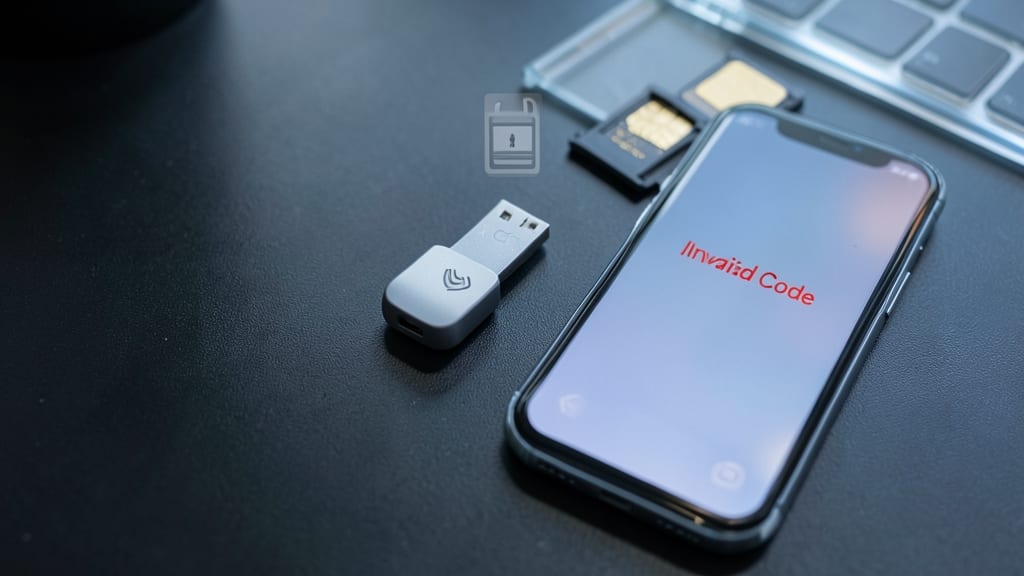
When phishing attacks bypass SMS codes and push notifications, a YubiKey stands as your last line of defense—literally. Unlike software-based 2FA, these tiny USB or NFC devices generate one-time codes only when physically inserted or tapped, making them immune to SIM swaps, keyloggers, and even advanced man-in-the-middle attacks.
The YubiKey 5 Series supports FIDO2, WebAuthn, and U2F standards, working seamlessly with Windows Hello, macOS Keychain, and 10,000+ services like Google, GitHub, and LastPass. Models like the YubiKey Bio add fingerprint authentication for an extra layer, while the YubiKey 5 Nano fits on a keychain—ideal for travelers. Even better, they’re FCC-certified and Tamper-evident, meaning any attempt to open them destroys the internal components.
This is the gold standard for business professionals, remote workers, and frequent travelers who need protection stronger than passwords or SMS codes. A single YubiKey can replace dozens of 2FA apps while keeping your accounts secure even if your phone is lost or hacked. ✨
Enable full-disk encryption on your OS
If your laptop contained sensitive work files, personal financial records, or even just embarrassing photos, full-disk encryption turns a stolen device into a digital brick. Unlike password managers or 2FA—which protect accounts—this locks everything on your drive, rendering it useless without your passphrase.
Windows users enable BitLocker via Control Panel > BitLocker Drive Encryption (Pro/Enterprise editions) or Settings > Update & Security > Device Encryption (Home editions). Mac users activate FileVault in System Preferences > Security & Privacy—both use AES-256 encryption, the same standard banks use. Setup takes minutes, and modern SSDs handle the overhead seamlessly.
This is non-negotiable for remote workers, travelers, or anyone storing sensitive data. Even if your device is lost or stolen, attackers face a 1-in-10^77 chance of guessing your passphrase. 🌟
Hardening your web browser against exploits
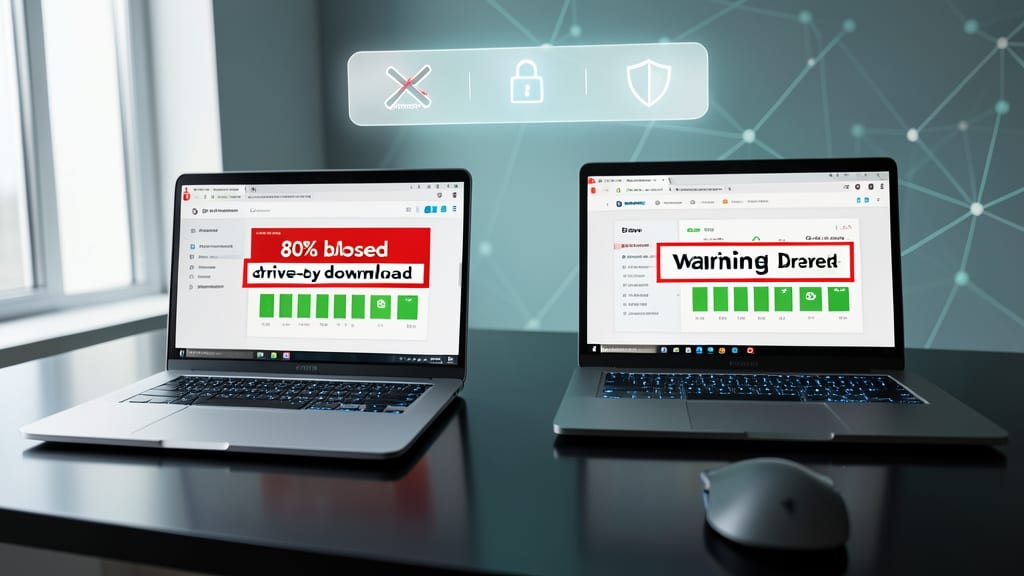
Your browser is the #1 attack vector for malware—yet most users leave it wide open. With just three tweaks—disabling JavaScript, enforcing HTTPS-only mode, and switching to Firefox Hardened or Brave—you can block 80% of drive-by downloads that exploit outdated software vulnerabilities.
Start by disabling JavaScript in your browser’s settings (or use extensions like uBlock Origin to block risky scripts). Enable HTTPS-only mode to force secure connections, preventing man-in-the-middle attacks. Then switch to Firefox Hardened (built for security professionals) or Brave, which includes built-in protections like tracker blocking and sandboxed rendering. These changes don’t just stop exploits—they also improve privacy by reducing fingerprinting risks.
This setup is ideal for remote workers, journalists, or anyone handling sensitive data. Even casual users benefit from the added layer of defense against malicious ads and compromised websites. ✨
Regularly Update all software automatically
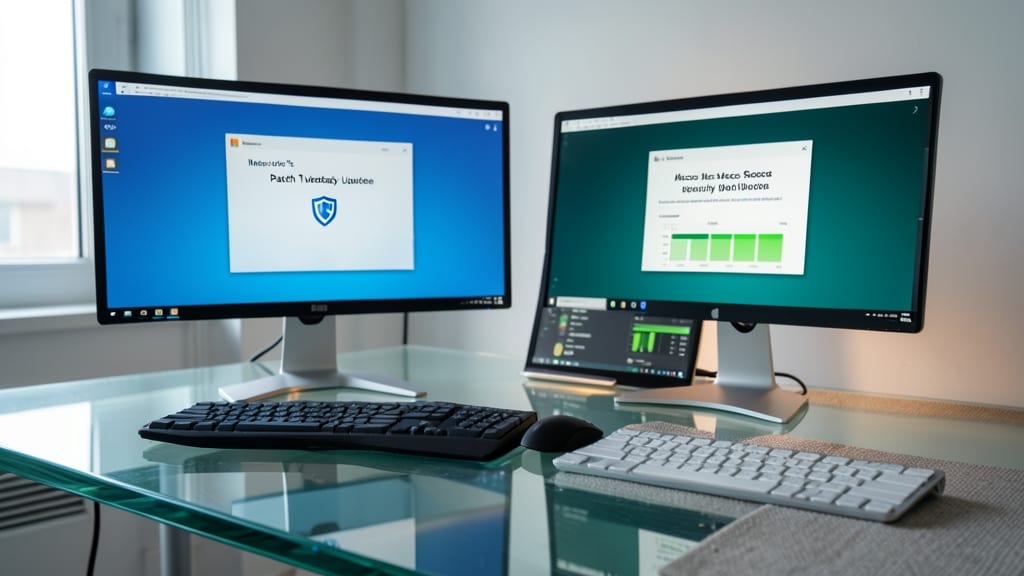
Forget manually checking for updates—automating software patches is your best defense against cybercriminals exploiting known flaws. Microsoft’s Patch Tuesday and Apple’s macOS security updates release monthly fixes for vulnerabilities that ransomware groups actively scan for. Waiting even a week can leave you exposed to attacks like WannaCry or NotPetya, which crippled organizations by targeting outdated systems.
On Windows, enable automatic updates in Settings > Windows Update (set to "Install updates automatically"). For macOS, go to System Settings > General > Software Update and toggle "Automatically keep my Mac up to date." Most third-party apps—like browsers, PDF readers, and messaging tools—also offer auto-update settings in their preferences. This zero-effort habit closes security holes before hackers can weaponize them.
This is non-negotiable for small businesses, remote workers, or anyone handling sensitive data—like freelancers with client files or parents managing kids’ devices. Set it once, and let your OS handle the rest. ⚡
Deploy a next-gen antivirus with EDR
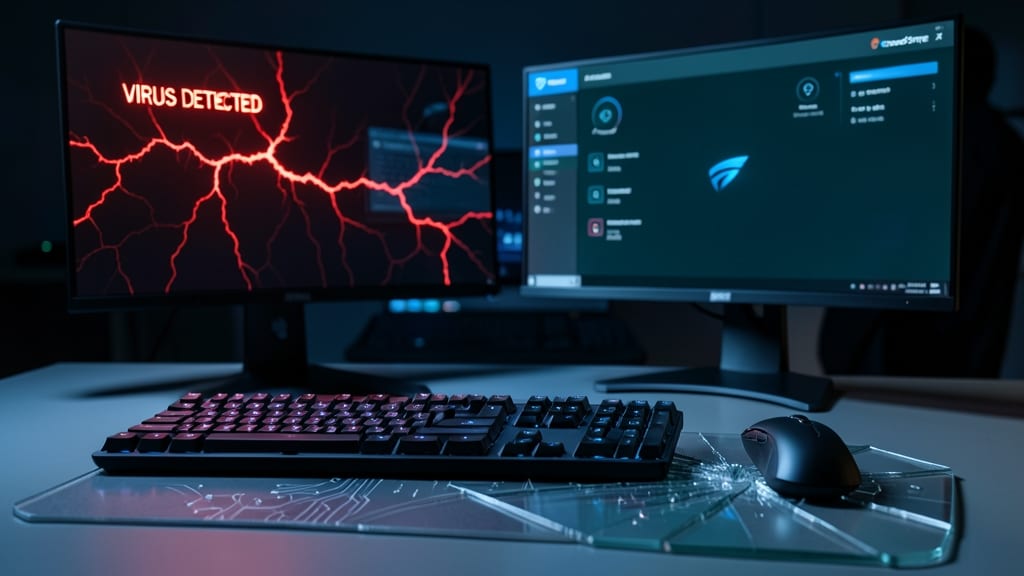
If your current antivirus hasn’t stopped a single malware attack in the last year, it’s time for an upgrade. Traditional signature-based antivirus tools are obsolete against zero-day exploits—malware that flies under the radar because it’s never been seen before. Next-gen solutions like CrowdStrike or SentinelOne use AI-driven endpoint detection and response (EDR) to analyze behavior in real-time, blocking threats before they even execute.
These tools go beyond scanning files—they monitor system calls, network traffic, and process behavior to detect anomalies. For example, CrowdStrike’s Falcon integrates with cloud workloads, while SentinelOne offers self-healing capabilities that automatically roll back compromised files. Both run silently in the background with minimal performance impact, making them ideal for power users, IT admins, or anyone handling sensitive data.
Small businesses and remote workers should prioritize this—EDR stops ransomware before encryption begins. 💪
Create a dedicated admin account for daily use
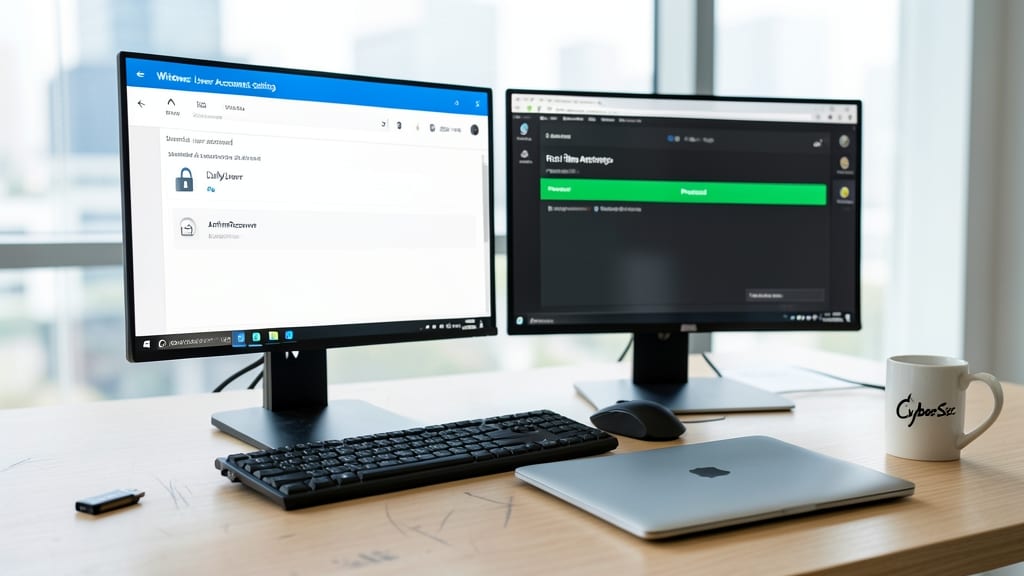
Most malware needs admin rights to take over your system—but you don’t need them for everyday tasks. By creating a standard user account for daily use and reserving the admin account for installations or updates, you cut off malware at the pass before it can spread.
Windows makes this easy: right-click your user icon in the Start menu, select "Add someone else to this PC", and choose "I don’t have this person’s sign-in information" to create a standard account. The User Account Control (UAC) prompts will then flag any app trying to make system-wide changes, giving you a second layer of defense. Even Mac users benefit—just disable "Allow user to administer this computer" in System Preferences.
This is especially useful for shared family computers, public workstations, or gamers who download files daily. A standard account won’t stop all threats, but it’s a zero-cost, zero-effort way to lock down your system. 💪
Monitor network traffic with a Firewall
Remote work means your home network is now your office’s first line of defense. The built-in Windows Defender Firewall and macOS Firewall block incoming threats by default, but they won’t alert you to sneaky outbound connections—like malware phoning home or a rogue app leaking data. That’s where proactive monitoring comes in.
For basic protection, enable the Windows Firewall (via Control Panel > System and Security) or macOS Firewall (in System Preferences > Security & Privacy), then set rules to block all incoming connections. But for granular visibility, third-party tools like Little Snitch ($60) log every network request, letting you block apps like cryptominers or ad trackers in real time. On Windows, GlassWire ($40) visualizes traffic patterns with a live graph—perfect for spotting unusual activity during video calls or file transfers.
This setup is a must for remote workers, freelancers handling sensitive data, or anyone sharing a Wi-Fi network. Start with your OS’s built-in firewall, then layer on Little Snitch or GlassWire for peace of mind. 💻
Backup critical data with immutable storage
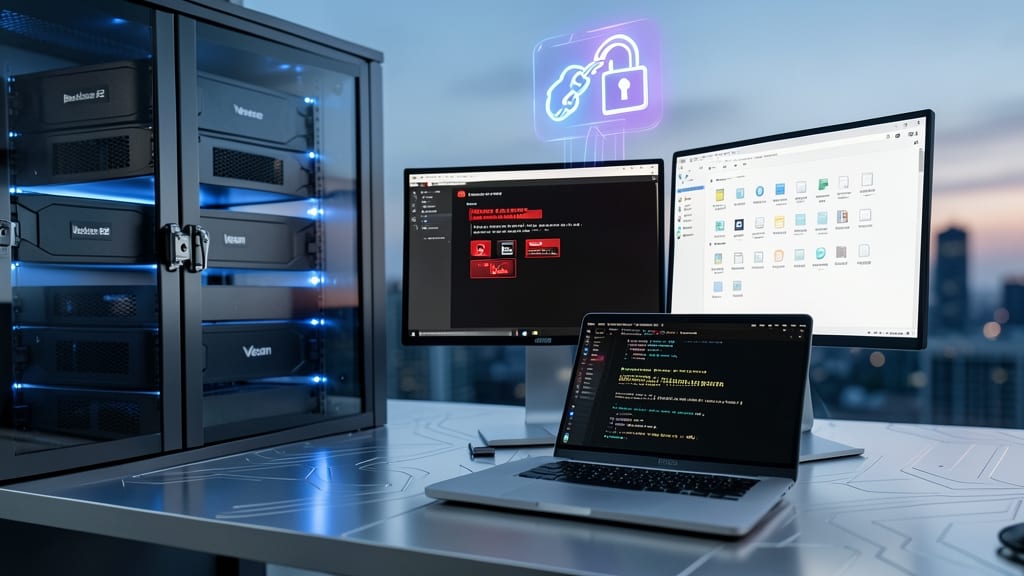
Ransomware locks your files and demands payment—but what if you could restore them instantly, even after an attack? Immutable storage (like Backblaze B2 or Veeam) creates backups that can’t be altered or deleted, not even by malware. This is your last line of defense when encryption fails.
For air-gapped backups, disconnect a dedicated external drive after syncing critical files—no network access means no ransomware can touch it. Cloud solutions like Wasabi Hot Storage offer versioning with unlimited snapshots, so you can roll back to a clean state before the attack. The key is 3-2-1 rule: 3 copies, 2 media types, 1 offsite.
Small business owners and freelancers handling client data should prioritize this—immutable backups are the only way to guarantee recovery. 💻