
Software
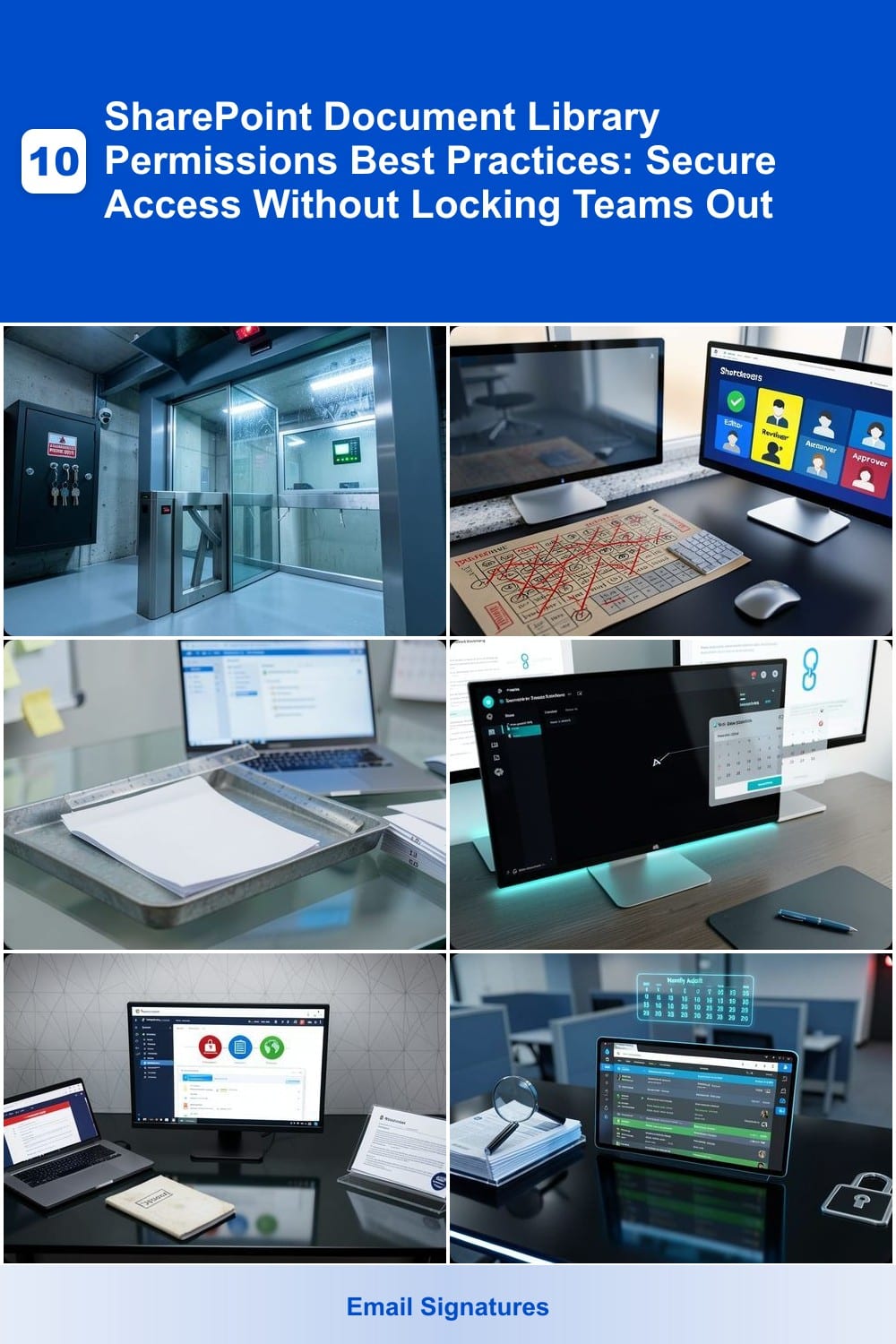
Managing SharePoint document library permissions can feel like walking a tightrope—balance security with accessibility. These 10 best practices help you protect sensitive data while keeping collaboration seamless for your team.
Use Least Privilege Principle for Access

Imagine granting access like handing out keys to a high-security facility—you wouldn’t give everyone the master key, right? The least privilege principle in SharePoint means users get only the permissions they absolutely need to do their jobs, nothing more. This minimizes exposure to sensitive documents while keeping workflows smooth.
Start by reviewing each user’s role—an HR specialist might only need read access to payroll documents, while a project manager requires edit rights for team files. SharePoint’s permission levels (like Contribute or Edit) let you fine-tune access without overloading libraries with broad permissions. For example, restrict delete rights to admins only, even if others can edit. This approach slashes risks like accidental data leaks or unauthorized edits while maintaining productivity.
This strategy shines for compliance-heavy teams (like legal or finance) or any group handling confidential client data. It’s the foundation of a secure SharePoint setup—simple, scalable, and battle-tested. ⚡
Implement Role-Based Permission Groups

Managing individual permissions for every team member in SharePoint can quickly turn into a nightmare—especially when your team grows beyond 10 people. Role-based permission groups solve this by letting you define custom access levels (like Editor, Reviewer, or Approver) and apply them to entire groups at once, rather than assigning permissions one user at a time.
Start by creating a custom permission level in SharePoint (e.g., Project Manager with Edit + Delete rights) and assign it to a security group. This way, when a new team member joins, you simply add them to the group—no manual permission tweaking required. You can even nest groups (e.g., Marketing Team under Editors) to streamline access further. For large teams, this cuts permission management time by up to 80%, while keeping security tight.
This approach is perfect for marketing agencies, product teams, or HR departments where roles change frequently but access needs stay consistent. It’s the scalability upgrade your SharePoint permissions strategy needs. 💪
Enable Versioning and Check-Out Requirements

Tired of losing critical updates when multiple team members edit the same document? SharePoint’s versioning and check-out requirements act like a digital co-pilot, ensuring only one person modifies a file at a time while preserving every change.
Enable versioning to retain up to 50,000 versions (configurable) of each document, letting you restore previous drafts with a single click. Pair this with check-out requirements, which force users to "check out" a file before editing—preventing conflicts and accidental overwrites. For libraries handling contracts or policies, you can also set major/minor version controls to enforce approval workflows.
This setup is perfect for legal teams, HR departments, or any group where document integrity matters most—like finance reports or client proposals. ✨
Restrict External User Access via Guest Links

Sharing documents externally doesn’t have to mean leaving them vulnerable forever. SharePoint’s guest links let you share files without granting full access, but they’re only secure when used intentionally—especially with expiration dates to limit exposure.
When creating a guest link, always select "Anyone with the link" and set a custom expiration (e.g., 7 or 30 days) to ensure external access doesn’t linger after the document is no longer relevant. For extra security, enable "Password protection" to add another layer before sharing. This approach keeps sensitive files accessible only to intended recipients—and only for as long as needed.
This strategy is perfect for contractors, clients, or vendors who need temporary access to proposals, invoices, or project updates. It’s a simple way to balance collaboration with control. ✨
Apply Sensitivity Labels for Classification
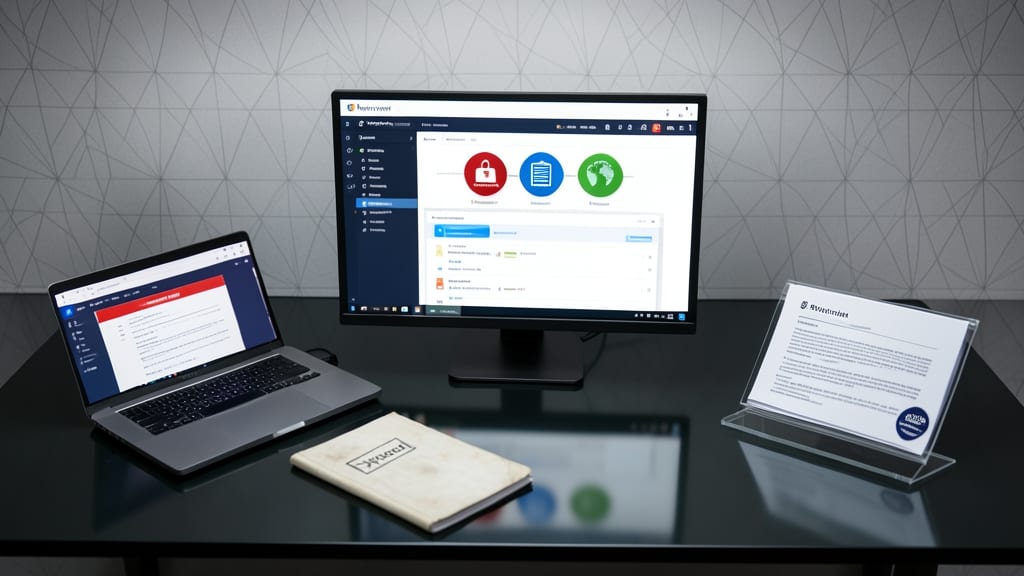
Tired of manually assigning permissions only to realize later that sensitive documents were left exposed? Microsoft Purview sensitivity labels solve this by automatically classifying and enforcing access rules based on document content.
With Purview labels (like Confidential, Internal, or Public), you define classification rules that apply to files—such as keywords, sender domains, or document properties—and SharePoint inherits permissions dynamically. For example, a label marked Confidential could restrict access to only executives, while Internal might allow broader team access. The system even blocks downloads or printing for highly sensitive files, reducing human error.
This approach is ideal for compliance-heavy industries (like finance or healthcare) where manual oversight is impractical. Set it up once, and let automation handle the rest. ✨
Audit Permission Changes Regularly

Ever wondered how to catch sneaky permission changes before they become security risks? Monthly permission audits are your secret weapon—especially in regulated industries where compliance isn’t optional. SharePoint’s Audit Log Reports let you track who modified permissions, when, and why, so you can spot anomalies like a pro.
Start by using the SharePoint Admin Center to generate reports on permission changes over the past 30 days. Look for orphaned permissions (access granted to inactive accounts) or unexpected escalations (e.g., a "Viewer" suddenly becoming an "Editor"). For extra rigor, integrate with Microsoft Purview Compliance to flag changes against your organization’s policies. This isn’t just busywork—it’s how you close compliance gaps before auditors even ask.
Teams in healthcare, finance, or government sectors will love this—it’s the difference between a smooth audit and a last-minute scramble. Set a calendar reminder now, and turn permission reviews into a low-effort, high-impact habit. ✨
Segment Libraries by Department or Project

If your SharePoint environment feels like a digital free-for-all where departments mix files without boundaries, it’s time to create logical silos. Segmenting libraries by department or project ensures only the right teams access the right data—no more accidental leaks between unrelated groups.
Start by creating separate libraries for each department (e.g., Marketing Assets, Finance Reports) or project (e.g., Product Launch 2025). Use SharePoint’s built-in folder structures or metadata columns to enforce access rules at the library level, then break inheritance to assign custom permissions (e.g., Edit for Marketing, Read for HR). This minimizes cross-departmental exposure while keeping collaboration fluid within teams.
This approach is ideal for mid-sized to large organizations with distinct workflows—like marketing, finance, and HR—where sensitive data (e.g., client contracts, payroll) shouldn’t mix. 💻
Enable Multi-Factor Authentication for Admins

SharePoint admins wield immense power—one misclick can grant unintended access or lock out critical teams. Multi-Factor Authentication (MFA) for these accounts isn’t optional; it’s your first line of defense against credential theft and unauthorized permission changes.
Enabling MFA via Azure AD (for SharePoint Online) or Microsoft 365 Admin Center (for hybrid/on-prem) adds a second verification step—like a code from an app or text—before admins can modify permissions. This blocks 99.9% of automated attacks and ensures only authorized users can alter sensitive access controls. For SharePoint Server, integrate third-party MFA solutions like Duo or RSA SecurID if native options are limited.
This is non-negotiable for compliance-heavy industries (finance, healthcare) or any team handling confidential contracts or HR documents. Start by enabling MFA for your Site Collection Administrators first—they’re the highest-risk accounts. 💪
Use Retention Policies to Auto-Archive Documents
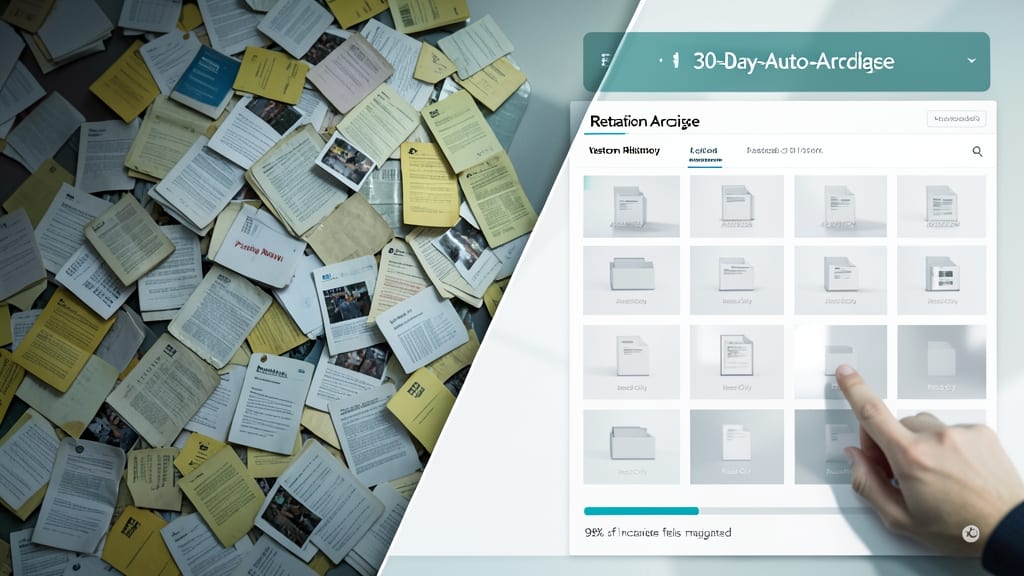
Tired of sifting through outdated documents cluttering your SharePoint libraries? Retention policies let you automate the cleanup—moving inactive files to read-only archives after a set period, like 30 days, 1 year, or custom dates, without manual intervention.
Configure policies to archive documents (preserving them but locking edits) or delete them entirely after retention ends. This reduces permission clutter by removing stale files from active libraries while keeping them searchable in archives. For compliance-heavy industries, retention policies also ensure documents meet legal holds or regulatory requirements.
Perfect for legal teams, HR departments, or finance groups managing records-heavy workflows, retention policies turn document lifecycle management from a chore into a zero-config process. ✨
Train Teams on Secure File Sharing

Shadow IT lurks when teams bypass SharePoint to share files via email or cloud drives—costing your company both security and compliance. The solution? Proactive training that turns employees into permission advocates, not accidental risks.
Start with interactive workshops using SharePoint’s built-in permission simulators (like the "What If" scenarios in Microsoft 365 Admin Center) to show real-world consequences of over-sharing. Supplement with role-specific guides—for example, a one-pager for marketers on handling client files versus an HR template for employee records. Automate reminders via Microsoft Viva Learning to reinforce best practices quarterly.
This approach works best for mid-sized teams where cross-department collaboration meets strict compliance needs (think healthcare or finance). By making security intuitive, you’ll slash shadow IT while keeping productivity flowing. ✨