
Software
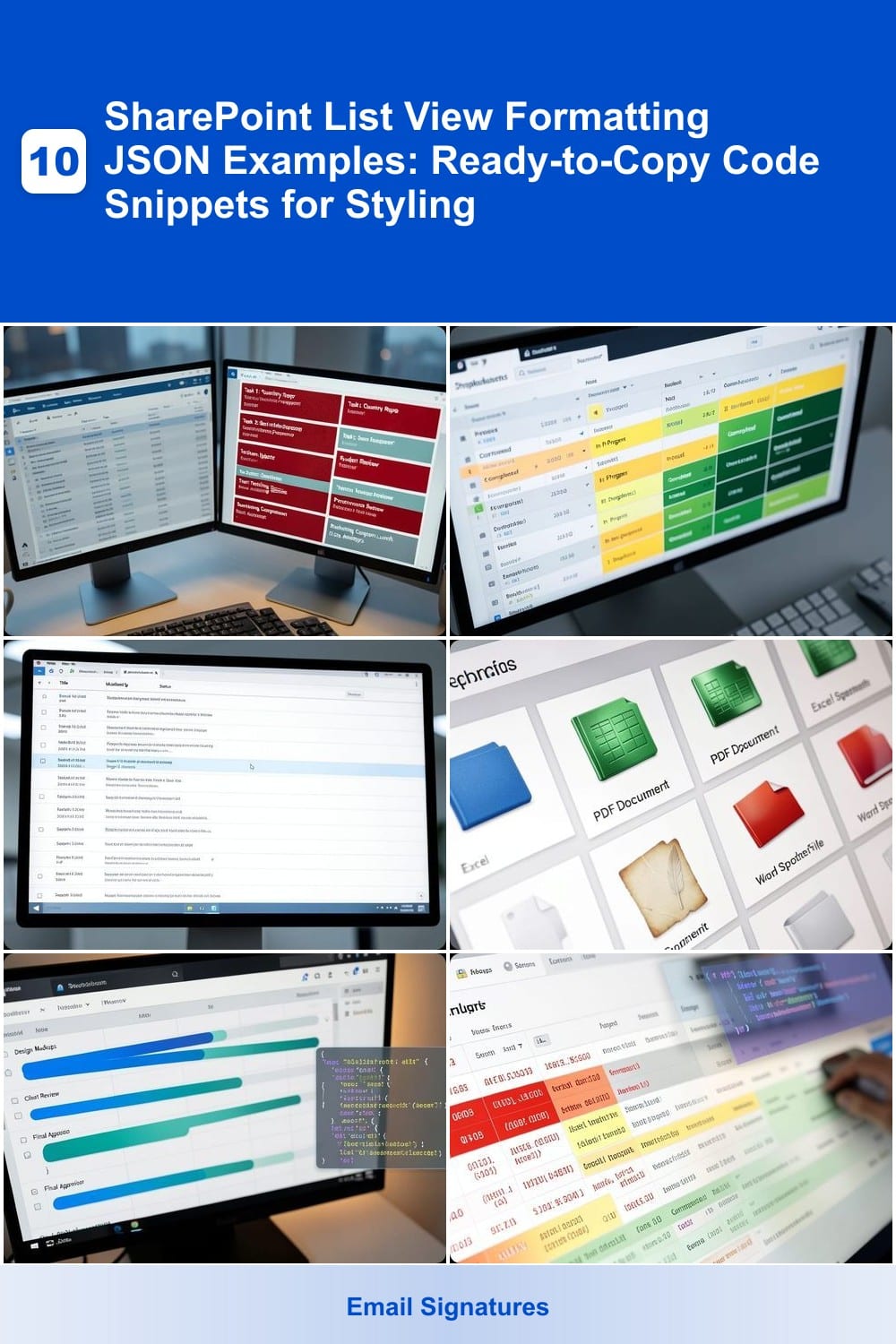
Transforming dull SharePoint list views into visually appealing, functional tools is easier than ever with JSON formatting. These 10 ready-to-copy JSON snippets will help you create modern, branded, and user-friendly list views that enhance productivity and engagement in your SharePoint environment.
Highlighted Priority Items in Red
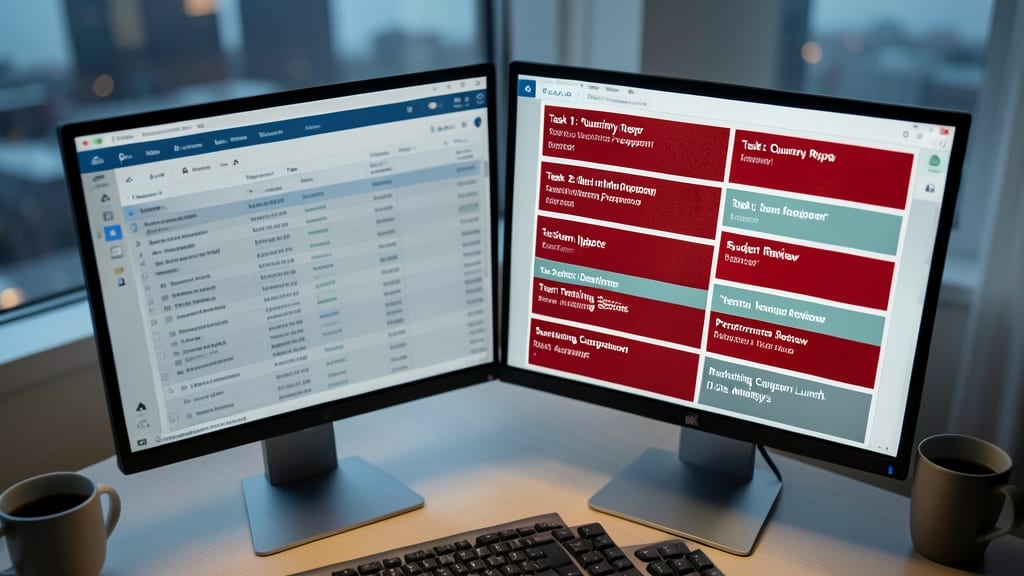
Struggling to spot urgent tasks buried in a sea of SharePoint list items? This highlighted priority red JSON snippet turns your task management into a visual command center by instantly flagging high-priority items with a bold red background and white text—no more missing deadlines in the shuffle.
The code uses a simple conditional rule to target items marked with a "Priority" column set to "High", applying #ff0000 (pure red) for maximum contrast. You can tweak the hex code to match your brand (e.g., #e00000 for a softer tone) or adjust the trigger condition to fit your workflow. Works seamlessly in SharePoint Online and on-premises (2016+), and pairs perfectly with other formatting tricks like progress bars or status indicators.
Ideal for project managers, support teams, or anyone juggling time-sensitive tasks, this snippet ensures critical items demand attention—without shouting. Just copy, paste, and watch your lists transform from chaotic to crystal clear. ⚡
Conditional Formatting for Status Columns
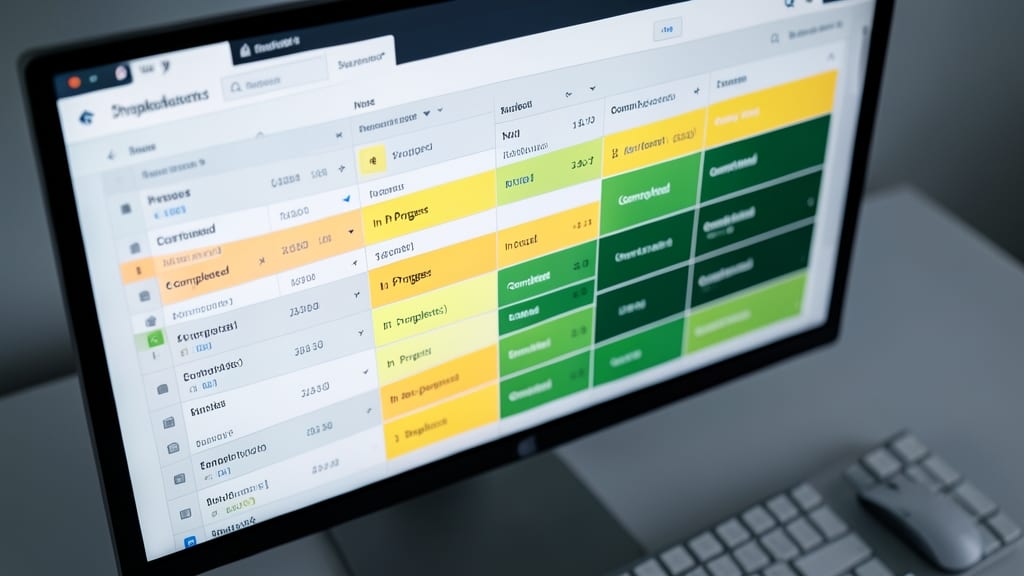
Need to track project statuses without digging into every item? This status column conditional formatting JSON snippet turns your SharePoint list into a visual progress dashboard by automatically coloring cells based on predefined status values (e.g., "In Progress" = yellow, "Completed" = green, "Pending" = red).
The snippet uses a simple JSON rule structure to map status values to colors, with support for gradient fills and custom hex codes (like #4CAF50 for green or #FF9800 for orange). It works seamlessly in SharePoint Online and on-premises (2016+) and pairs perfectly with other formatting tricks like progress bars or priority highlights. Just update the \"status\" field names to match your list columns.
Perfect for project managers, Agile teams, or support coordinators—this turns static lists into self-updating status boards where progress is visible at a glance. No more guessing where things stand! 💡
Alternating Row Colors for Readability
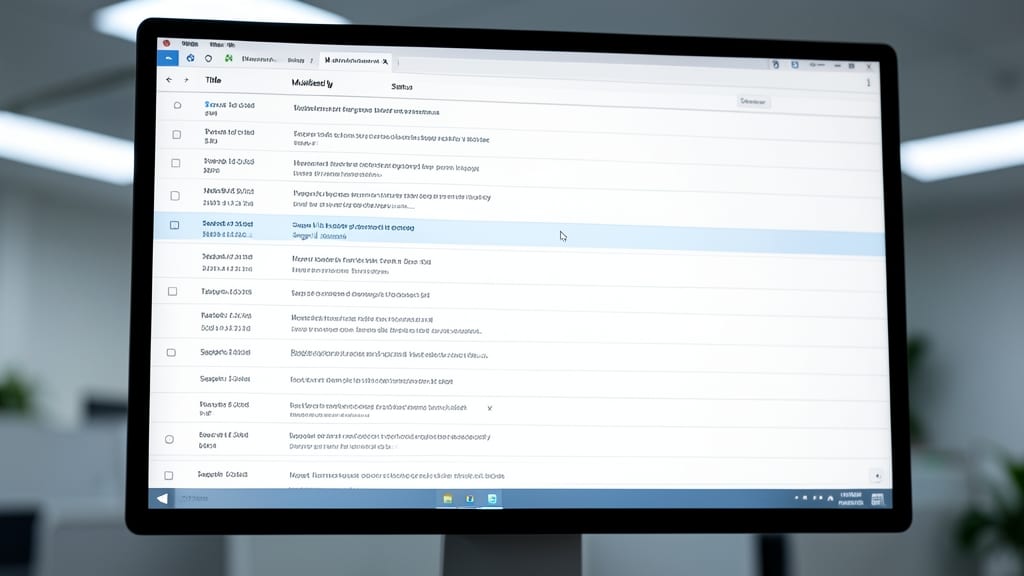
Staring at a wall of white rows in a SharePoint list can feel like reading a textbook without line breaks—your eyes tire quickly, and details blur together. This alternating row color trick solves that problem by applying a light gray background to every other row while keeping headers and selected rows pristine white, creating a Zebra-stripe effect that guides your gaze naturally.
The JSON snippet uses a simple rowIndex condition to alternate colors, requiring zero custom CSS—just paste the code into your list’s JSON view formatting under List View Format Painter. You can tweak the hex colors (#f2f2f2 for gray, #ffffff for white) to match your brand, and it works seamlessly across SharePoint Online and on-premises. For extra polish, pair it with conditional formatting to highlight key columns.
This is a must-have for HR databases, inventory lists, or any table with 50+ rows where users need to scan data efficiently. Try it on your next data-heavy list—your team’s eyes will thank you. ✨
Custom Icons for Document Libraries
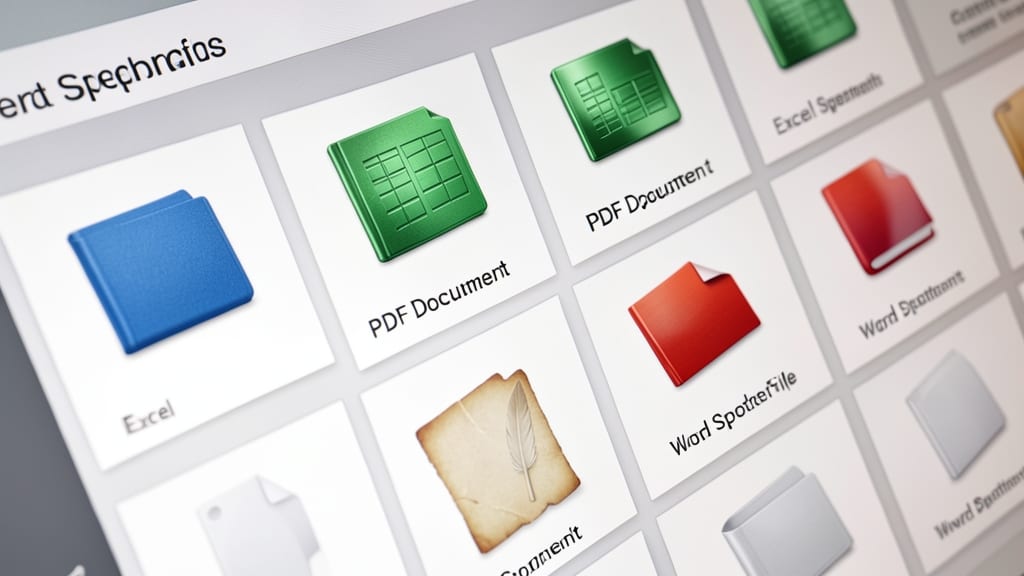
Tired of squinting at tiny, identical icons in SharePoint document libraries? Custom icons transform those generic placeholders into recognizable visuals—like a PDF icon for documents or an Excel icon for spreadsheets—so your team can spot file types instantly.
This JSON snippet replaces default icons with SVG-based custom images (uploaded via SharePoint’s Site Assets library). You can even use brand-aligned icons for consistency. The formatting works across SharePoint Online and on-premises (2016+) and integrates seamlessly with modern document libraries.
Perfect for collaborative teams managing shared files—no more guessing whether that icon is a Word doc or a PowerPoint. Just copy the JSON, apply it to your library, and watch recognition improve instantly. ✨
Progress Bars for Percentage Completion
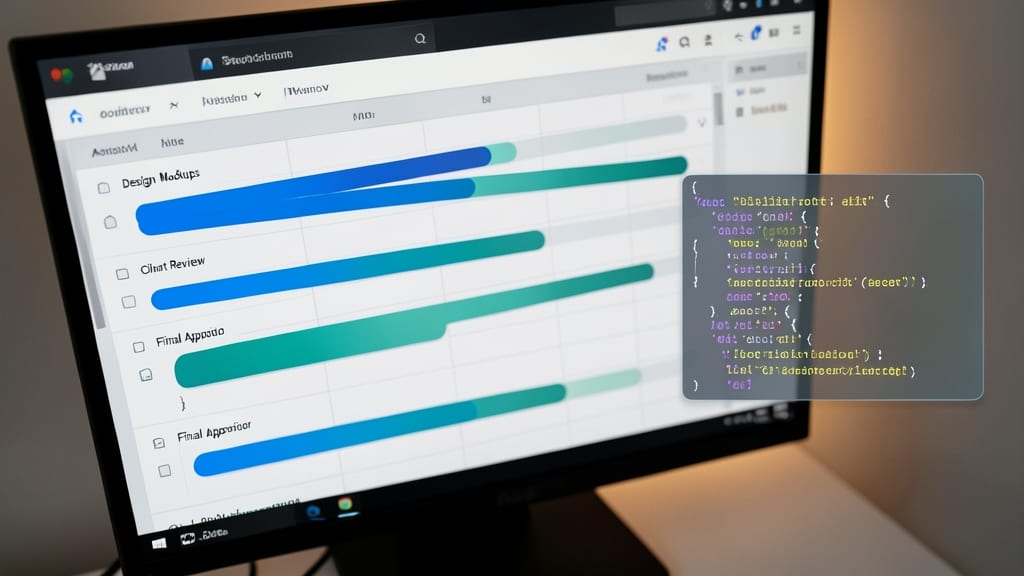
Tired of guessing how much progress has been made on your SharePoint tasks? This progress bar JSON snippet transforms percentage completion into a sleek, visual cue—no more squinting at numbers. Simply paste the code into your list’s JSON view formatter, and watch a horizontal bar dynamically update based on your Completion column values.
The snippet supports customizable colors (try #0078d4 for a modern blue or #ffcc00 for high visibility) and scales perfectly for task lists, project trackers, or even sales pipelines. You can even adjust the bar’s height and padding to match your design preferences. The result? A clean, intuitive way to spot bottlenecks or celebrate milestones at a glance.
Perfect for project managers or teams tracking deliverables—this is the visual feedback your SharePoint lists deserve. ✨
Conditional Formatting for Dates
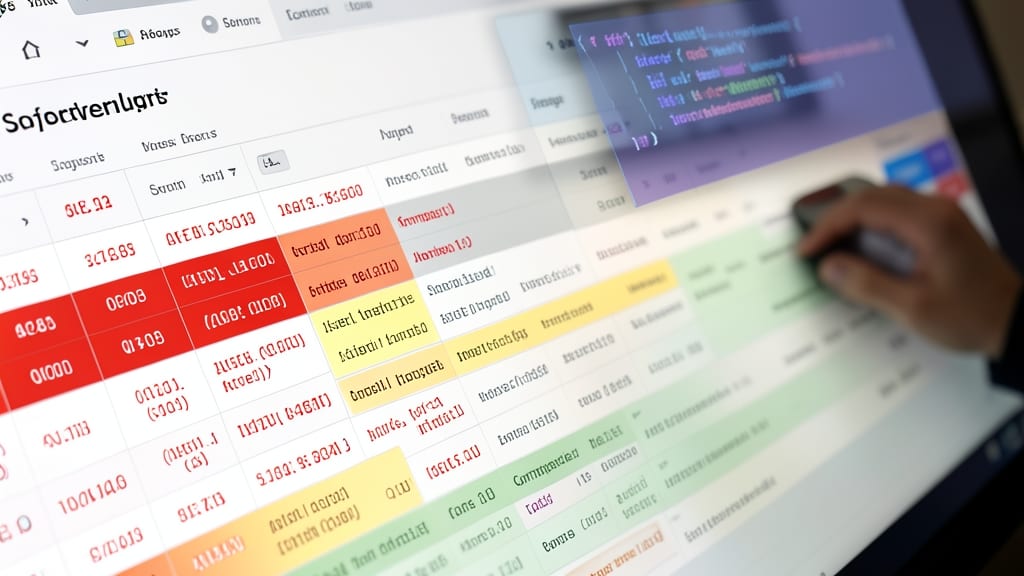
Missed deadlines in SharePoint lists? This date-based conditional formatting turns your timeline into a visual command center. With just a few lines of JSON, you can instantly color-code past due dates in bold red, upcoming deadlines in warm yellow, and completed tasks in calm green—all while keeping the rest of your data neutral.
The magic happens with a simple JSON rule that checks date fields against today’s date. For example, you can use "operator": "lessThan" for overdue items and "operator": "greaterThan" for future tasks. The result? A self-updating list that adapts automatically as deadlines pass—no manual updates required. This works perfectly for project timelines, support tickets, or any list where time-sensitive actions matter.
Project managers and team leads will love this for quick status checks during standups. Just glance at the color-coded dates to spot bottlenecks or celebrate milestones without digging through details. ⚡
Grouped and Collapsible Sections
Tired of scrolling through endless SharePoint lists where key items get lost in the noise? Grouped and collapsible sections transform cluttered lists into organized, actionable hubs by letting you bundle related items (like 'Approvals' or 'Pending Tasks') under expandable headers.
This JSON snippet uses the <group> property to create collapsible containers with custom headers and smooth animations. You can nest multiple groups, apply distinct styling to each, and even set default expanded/collapsed states. The result? A cleaner workspace where users focus only on what matters—no more wasted time hunting for relevant data.
Perfect for project managers juggling approval workflows or HR teams tracking employee requests. With just a few lines of JSON, you’ll turn chaotic lists into intuitive, user-friendly dashboards. ✨
Custom Tooltips for Additional Details
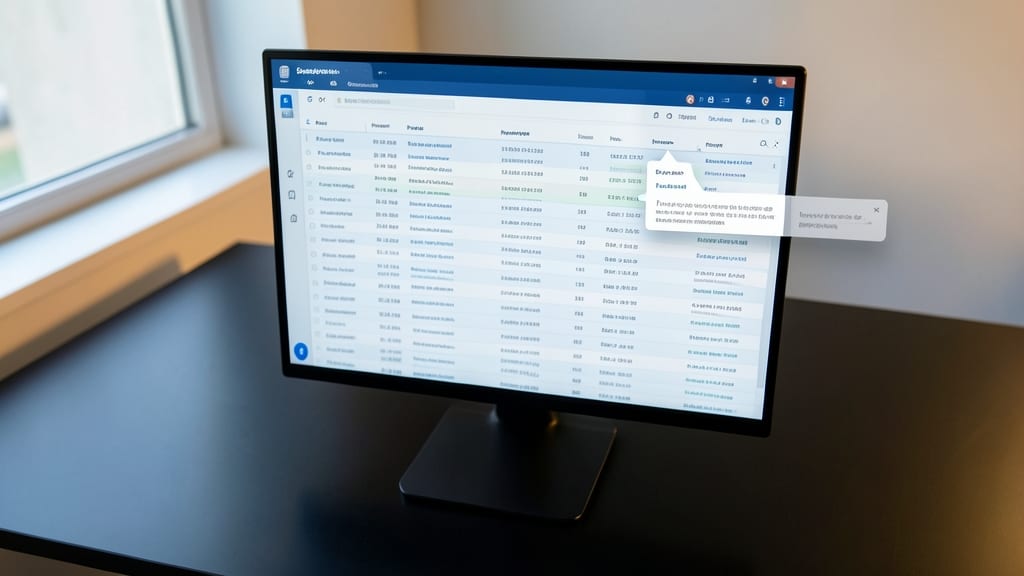
Struggling with lists that pack too much detail into too little space? Custom tooltips let you show extra information—like project notes or descriptions—only when users hover over an item, keeping your main view clean and focused.
This JSON snippet adds a hover-triggered tooltip that displays custom text from a column (e.g., "Notes" or "Description") without altering the primary list layout. You can style tooltips with custom colors, borders, and padding to match your brand, and even include HTML formatting for bold text or links. Best of all, it works seamlessly across SharePoint Online and on-premises environments.
Perfect for knowledge bases, task lists, or product catalogs where users need quick access to details but shouldn’t be overwhelmed by clutter. Try it to turn dense lists into intuitive, user-friendly experiences! ✨
Branded Header and Footer Styling
Want your SharePoint lists to look like they belong to your company—not a generic template? Branded header and footer styling lets you embed logos, adjust colors, and set custom fonts to match your brand identity effortlessly.
Use JSON to replace default SharePoint headers with your company logo, apply hex color codes (like #004dc9 for primary branding), and set custom fonts (e.g., 'Segoe UI' or 'Roboto'). For footers, add copyright notices or team contact info while keeping the design clean. This works seamlessly in SharePoint Online and modern SharePoint experiences.
Perfect for internal portals (like HR or IT support hubs) or client-facing sites where brand consistency matters. Just paste the JSON snippet into the list formatting pane—no coding skills required! ✨
Dynamic Filter Highlighting
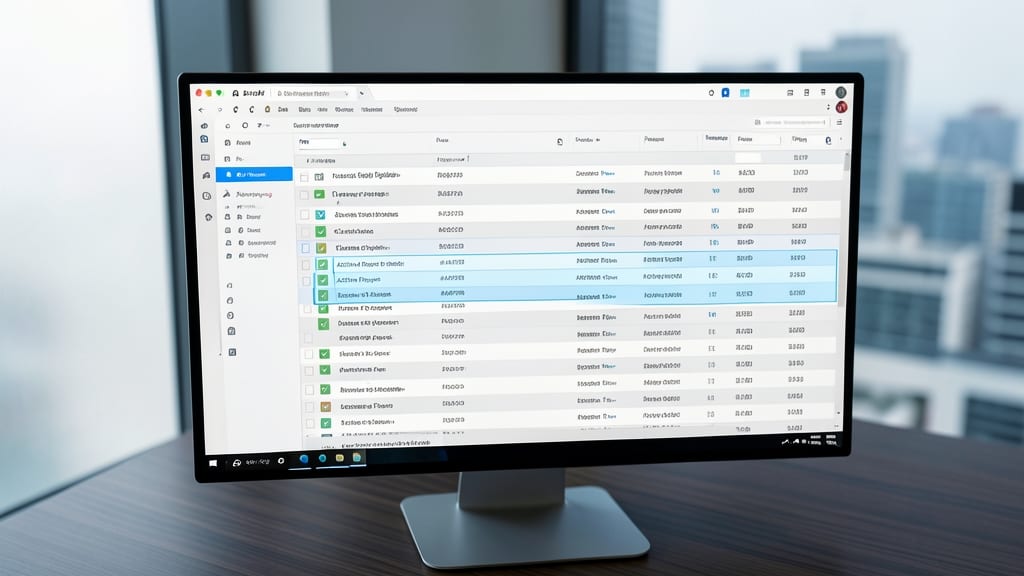
Tired of scrolling through SharePoint lists only to miss the rows that match your current filter? Dynamic Filter Highlighting solves that by instantly emphasizing filtered items—like Active Projects—with a light blue border or background, so you never lose track of what you’re focused on.
This JSON snippet uses the filter property to detect active filters and applies a subtle but noticeable highlight (e.g., #e6f2ff background or a dashed border) to matching rows. The effect is lightweight, works across all modern browsers, and integrates seamlessly with SharePoint’s built-in filtering. You can even customize the color to match your brand palette.
Perfect for project managers or team leads who juggle multiple filtered views—like tracking open tickets or pending approvals—this feature turns passive scanning into an active, visual experience. ✨