
Coding
Excel’s text functions transform messy data into clean, usable information—saving hours of manual work. These 10 powerful functions will help you format, extract, and manipulate text like a data professional, with practical examples for real-world scenarios.
Concatenate Function for Combining Text
Struggling with separate columns for first names, last names, or addresses? The CONCATENATE function is your go-to tool for merging text seamlessly—no manual copying or errors. Whether you're combining customer names for reports or assembling full addresses from components, this function ensures clean, error-free results every time.
Simply use =CONCATENATE(A1, " ", B1) to merge cell A1 (first name) with cell B1 (last name) and add a space in between. For more control, nest it with TRIM or TEXTJOIN to handle extra spaces or blank cells automatically. It’s especially useful when working with datasets where columns represent parts of a full string, like splitting a name into first/middle/last for analysis.
Perfect for HR professionals organizing employee records, marketers managing customer databases, or anyone who needs to combine text fields without manual effort. Master this, and you’ll save hours on data prep. ✨
Text to Columns for Splitting Data

Say goodbye to manually splitting comma-separated values (CSV) or tab-delimited data—Excel’s Text to Columns tool does the heavy lifting for you. Whether you’re working with exported datasets, survey responses, or legacy files, this built-in wizard instantly converts messy text into neatly organized columns with just a few clicks.
Start by selecting your data range, then navigate to Data > Text to Columns (or use the shortcut Alt + D + E). Choose your delimiter—comma, tab, semicolon, or even custom characters—and Excel will automatically split your text into separate columns. Need to refine further? Use the Advanced option to handle extra spaces, data formats, or column destinations. It’s faster than copying and pasting, and far more reliable for large datasets.
This function is a lifesaver for data analysts, small business owners, or anyone importing structured data—like turning a single cell with "John,Doe,New York" into three clean columns. ⚡
LEFT, RIGHT, and MID Functions for Extracting Text
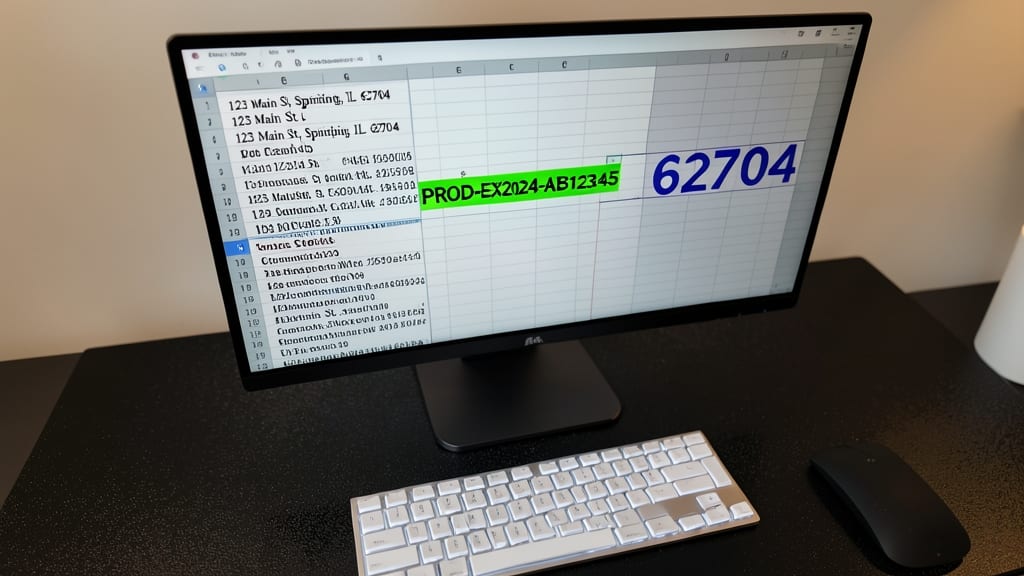
When you need to pull specific snippets from longer strings—like ZIP codes from addresses or product codes from serial numbers—Excel’s LEFT, RIGHT, and MID functions are your precision tools. Unlike splitting entire columns, these let you extract exact character ranges without rewriting data.
Use LEFT(A1,5) to grab the first 5 characters (e.g., area codes), RIGHT(A1,4) for the last 4 digits (like credit card suffixes), or MID(A1,7,3) to pull a middle segment (e.g., month/year from timestamps). All three support dynamic ranges, so you can adjust formulas as your data grows—no manual copying required.
Small business owners cleaning customer records or analysts parsing log files will find these functions indispensable for isolating critical data points. ✨
UPPER, LOWER, and PROPER for Text Formatting

Tired of inconsistent text case ruining your reports? The UPPER, LOWER, and PROPER functions instantly standardize messy data—whether it's fixing mixed-case names or ensuring professional formatting.
Use UPPER(A1) to convert all text to uppercase (e.g., "john doe" → "JOHN DOE"), LOWER(A1) for lowercase (e.g., "JOHN DOE" → "john doe"), or PROPER(A1) for title case (e.g., "jOhN dOE" → "John Doe"). These functions work across entire columns with a simple drag-and-drop, saving hours of manual edits.
Perfect for accountants formatting invoices, marketers preparing client lists, or anyone cleaning up imported data for polished reports. ✨
TRIM Function for Removing Extra Spaces

When imported data or user-generated content arrives with random extra spaces, your analysis hits a wall. The TRIM function is Excel’s secret weapon for instantly cleaning up leading, trailing, or duplicate spaces in cells—no manual editing required.
Simply type =TRIM(A1) to remove all unnecessary spaces from cell A1, including those pesky hidden characters that cause misaligned data. It’s especially useful for fixing CSV imports, survey responses, or copied-and-pasted text where formatting gets corrupted. Unlike other functions, TRIM only targets spaces—it won’t touch tabs or line breaks.
Perfect for data analysts, small business owners, or anyone wrestling with messy datasets. Once you master this, you’ll wonder how you ever lived without it. ✨
SUBSTITUTE Function for Replacing Text

Tired of manually fixing typos or inconsistent formatting across hundreds of rows? The SUBSTITUTE function lets you replace specific text—like symbols, abbreviations, or placeholders—with a single formula. It’s like Excel’s version of Ctrl+H, but with the precision of a surgeon’s scalpel.
Use =SUBSTITUTE(text, oldtext, newtext, [instancenum]) to target exact matches or specify how many replacements to make. For example, swap & with and in product descriptions, standardize Dr. to Doctor, or remove [Placeholder] tags from drafts. The optional instancenum parameter lets you replace only the first occurrence, the second, or all instances—giving you granular control.
This function is a lifesaver for data analysts, marketing teams, or anyone cleaning up imported datasets. Try it on a messy dataset today—your future self will thank you. ✨
LEN Function for Counting Characters

Need to ensure your ZIP codes are exactly 5 digits or validate passwords meet length requirements? The LEN function is your secret weapon for automated data validation in Excel.
Simply type =LEN(A1) to count characters in cell A1—perfect for checking if text meets strict criteria before processing. Combine it with IF statements to flag invalid entries (e.g., =IF(LEN(A1)≠5,"Invalid ZIP","Valid")). It’s also great for counting words or characters in reports, ensuring consistency across datasets.
This function is a must-have for data analysts, admins, or anyone managing structured text fields. ⚡
FIND and SEARCH Functions for Locating Text

Need to hunt down specific words in a cell but unsure whether to use FIND or SEARCH? These two functions are your Swiss Army knives for text location—but they behave differently. FIND is case-sensitive, perfect for exact matches like product codes (e.g., "ABC123"), while SEARCH ignores case, ideal for flexible searches like "apple" in "Apple Inc."
Both return the position of found text (e.g., FIND("X", A1) returns 5 if "X" is the 5th character), but SEARCH also handles wildcards (* and ?). For example, SEARCH("cat", A1) finds "Cat" or "CAT," while FIND("cat", A1) fails. Combine with MID to extract text after locating it (e.g., MID(A1, FIND(":", A1)+1, 5) pulls 5 characters after a colon).
Use FIND for strict validation (like checking IDs) and SEARCH for flexible queries (like keyword spotting). Data analysts and auditors will love these for spotting inconsistencies or extracting structured info from unruly text. ✨
TEXTJOIN Function for Advanced Concatenation

Tired of dealing with messy concatenation where empty cells or unwanted spaces ruin your results? The TEXTJOIN function is your game-changer—it combines text with custom delimiters while automatically skipping empty cells, making it perfect for dynamic datasets.
With three key parameters—range, delimiter, and ignore_empty—you control how data merges. For example, =TEXTJOIN(", ", TRUE, A1:C1) joins cells A1 to C1 with a comma and space, ignoring any blanks. This is ideal for generating comma-separated lists, merging variable-length data, or creating clean reports without manual checks. ⚡
Data analysts and report builders will love this for automating list creation—think inventory items, survey responses, or any scenario where empty cells would break traditional concatenation. Try it today for flawless text merging! 💡
CLEAN Function for Removing Non-Printable Characters
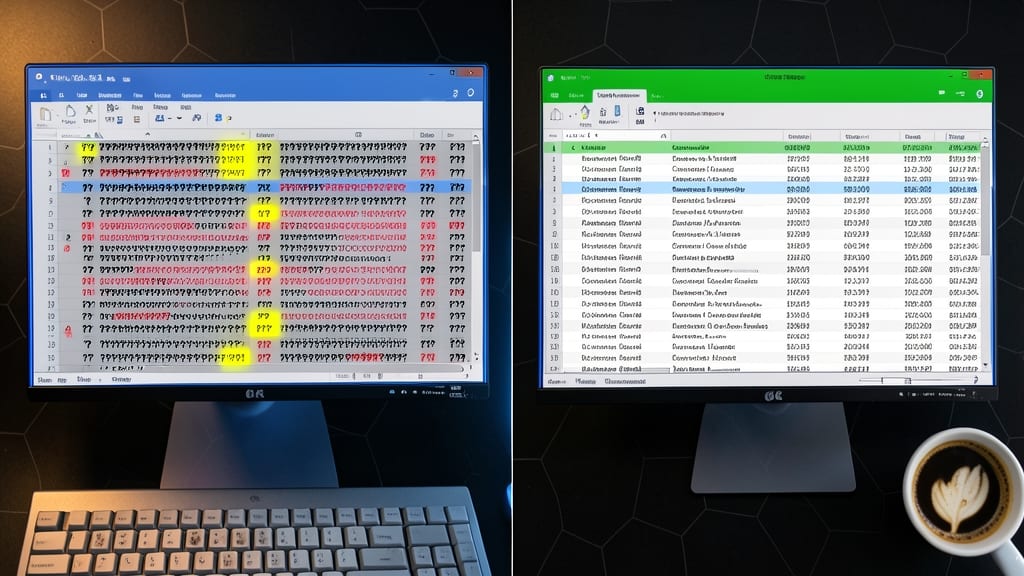
Ever imported a CSV or PDF into Excel, only to watch your data display as garbled text or formatting nightmares? The CLEAN function is your secret weapon—it strips out invisible characters like line breaks, tabs, or Unicode symbols that cause those frustrating formatting quirks.
This function scans your text and removes non-printable ASCII characters (codes 0-31 and 127), leaving only clean, usable data. For example, if you copy text from a website or scan a document, CLEAN(A1) will scrub hidden characters that might break formulas or pivot tables. It’s especially useful when merging data from different sources.
Perfect for data analysts, accountants, or anyone wrestling with messy imports—just apply it before further processing to avoid headaches down the line. ✨